ModKit
6.1 CREATE A ZOI
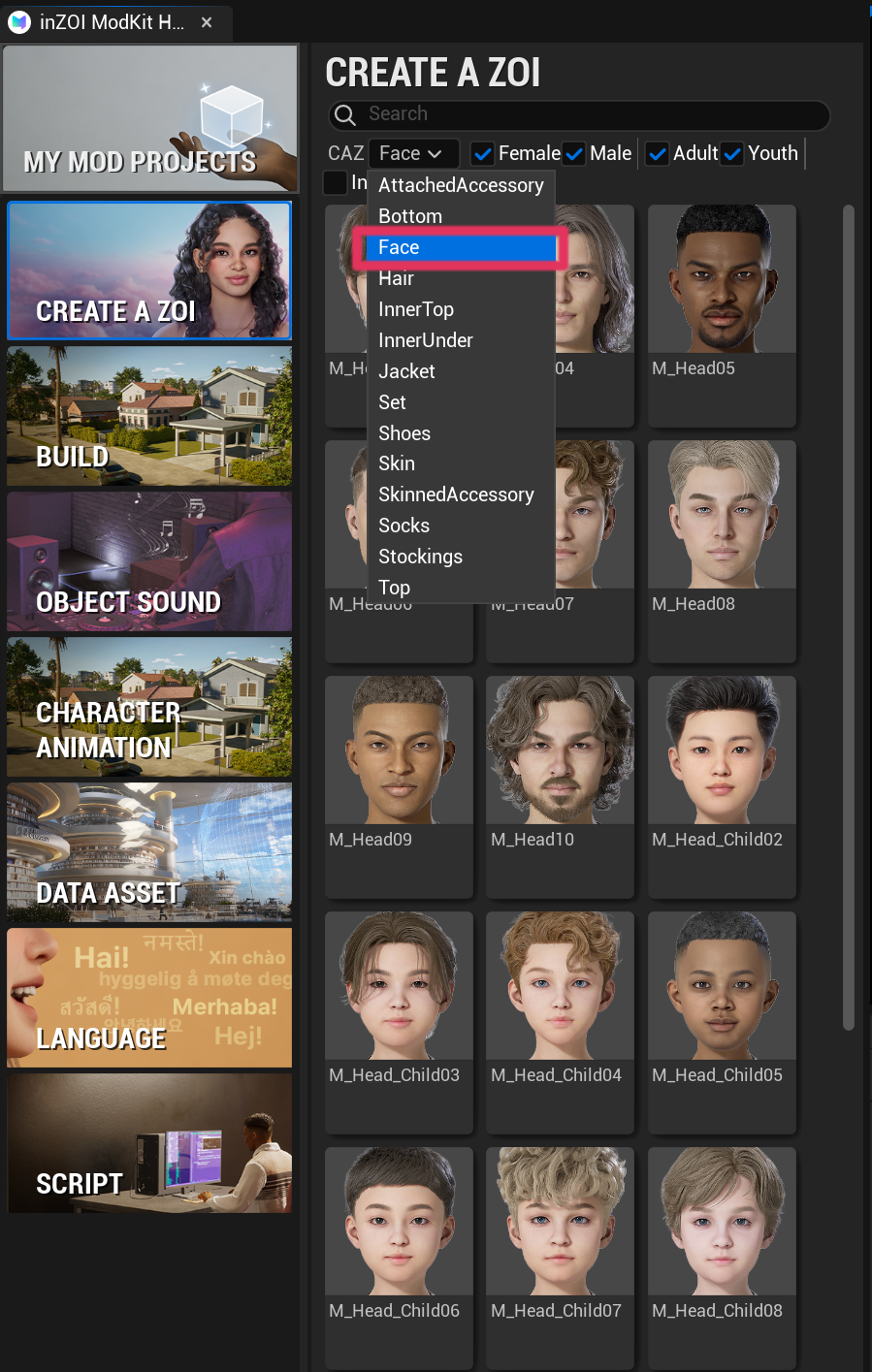
Open the ModKit editor and navigate to the following category.
CREATE A ZOI
CAZ → Face
6.2 Create New Mod Project
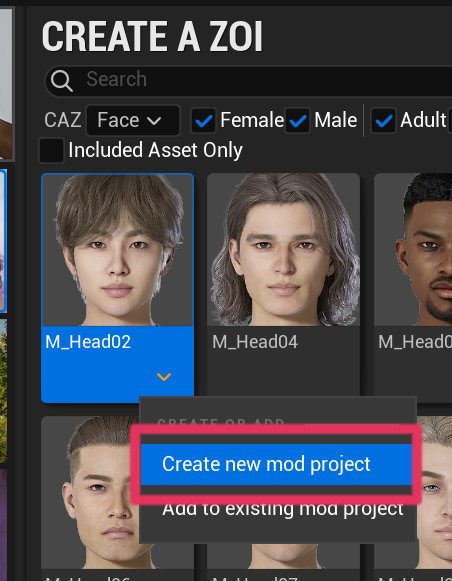
Select the base face and choose Create new mod project.
6.3 Mod Project Creation
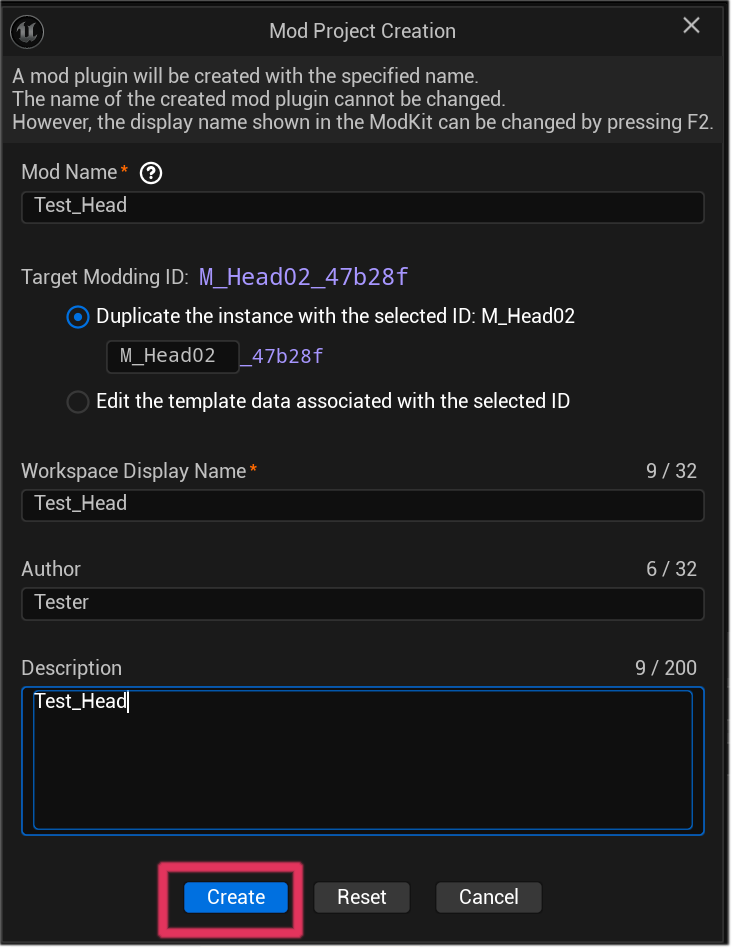
Enter the project information and click Create.
Example configuration
- Mod Name : Test_Head
- Workspace Display Name : Test_Head
- Author : Tester
- Description : Test_Head
6.4 Import Mesh and Thumbnail
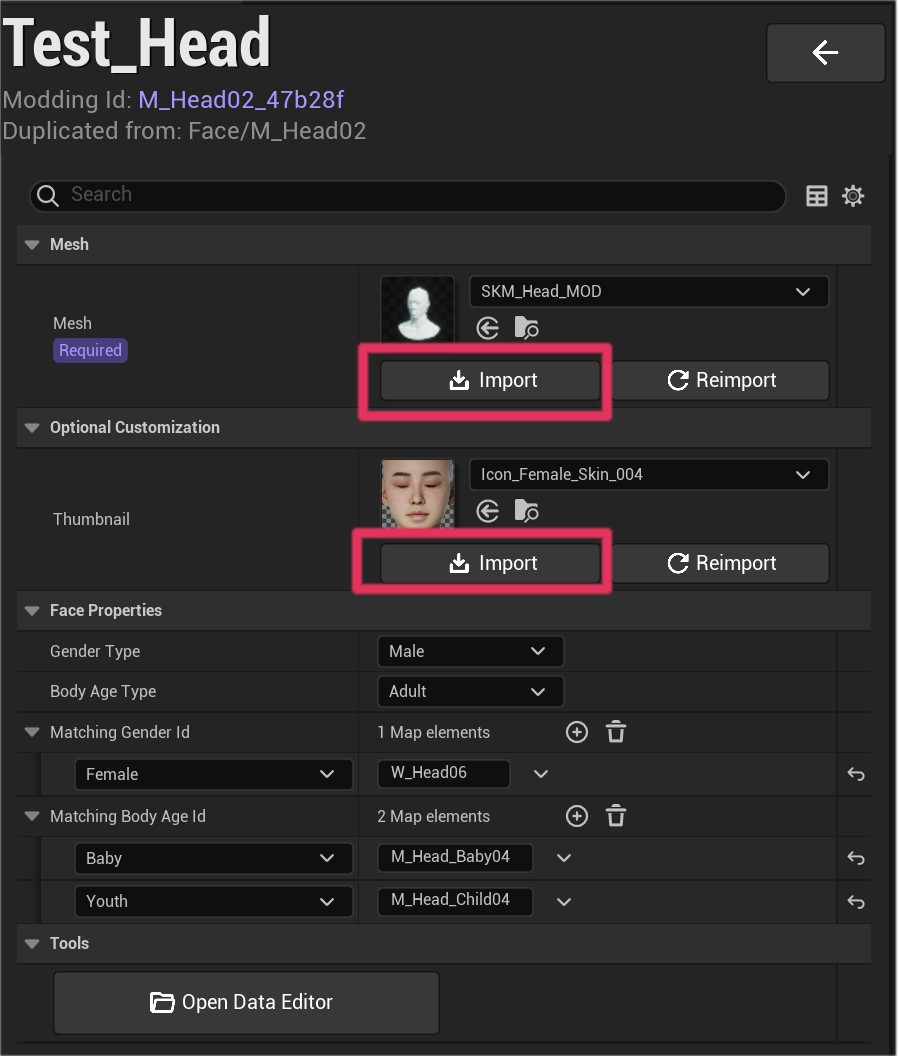
Import the mesh and thumbnail assets.
Mesh : required
Thumbnail : optional
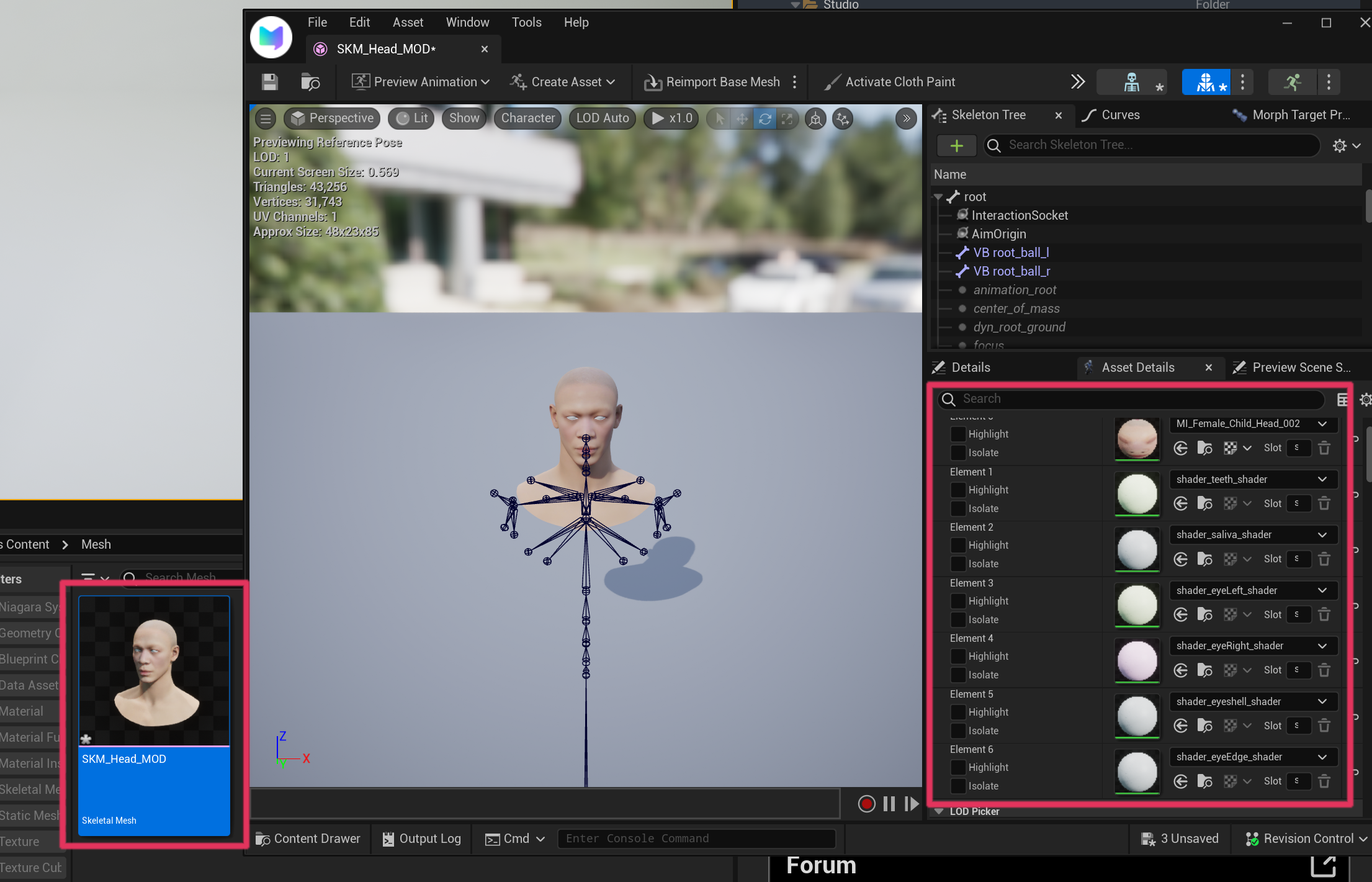
6.5 Assign Materials
Open the imported skeletal mesh editor and assign the required materials.
6.6 Import Modified DNA
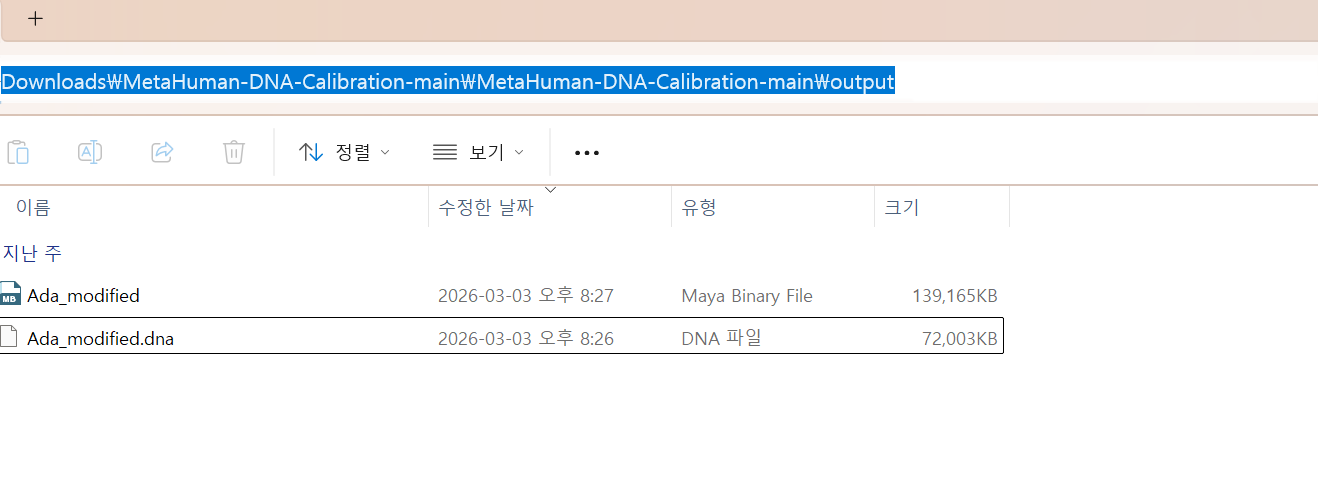
Locate the modified DNA file generated earlier.
Example path
C:...\Downloads\MetaHuman-DNA-Calibration-main\MetaHuman-DNA-Calibration-main\output
Select the following file.
Ada_modified.dna
6.7 Import DNA into ModKit
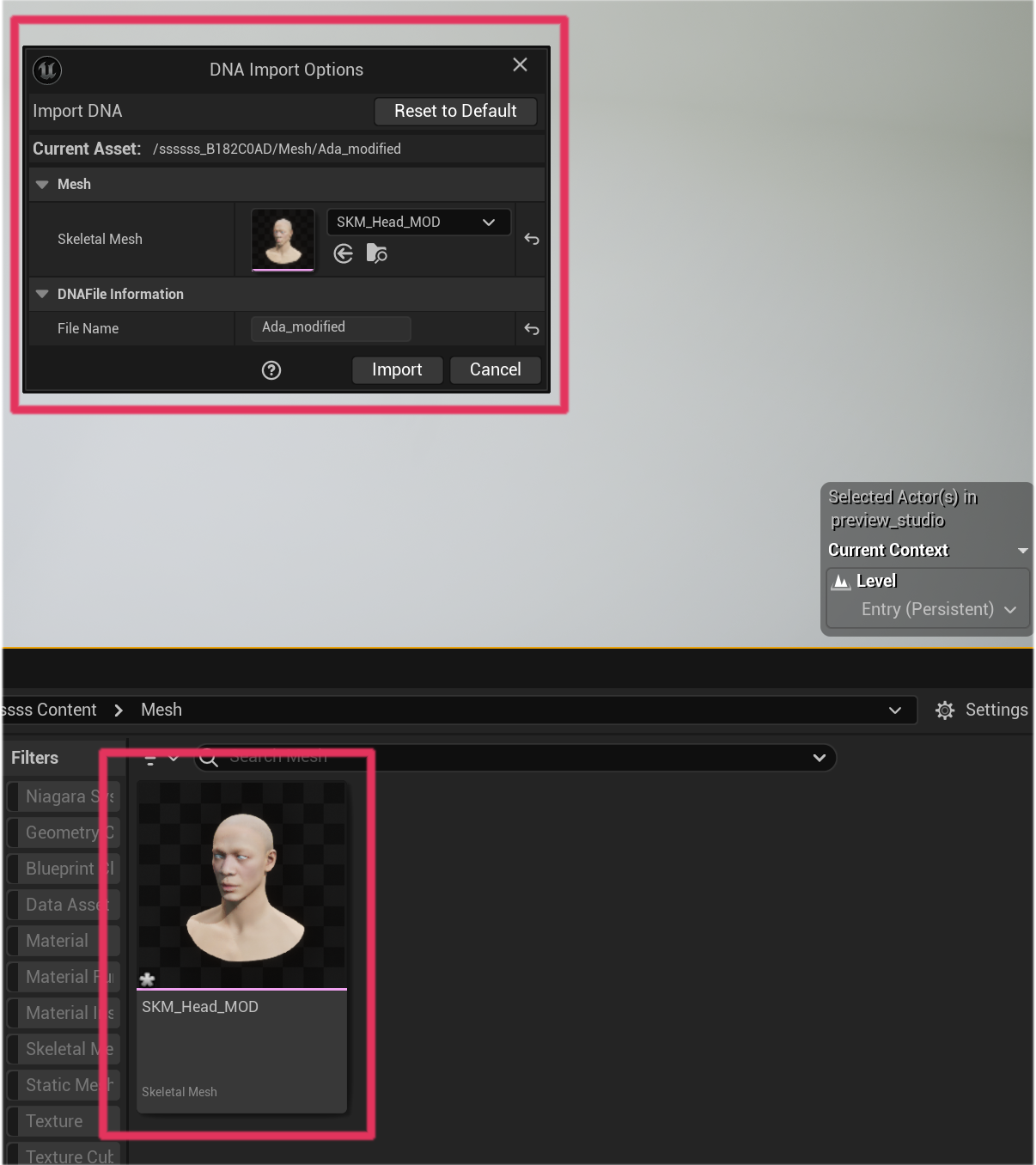
Drag and drop the skeletal mesh into the ModKit editor.
The DNA Import Options window will appear.
Click Import to apply the DNA data.
6.8 Verify DNA Data
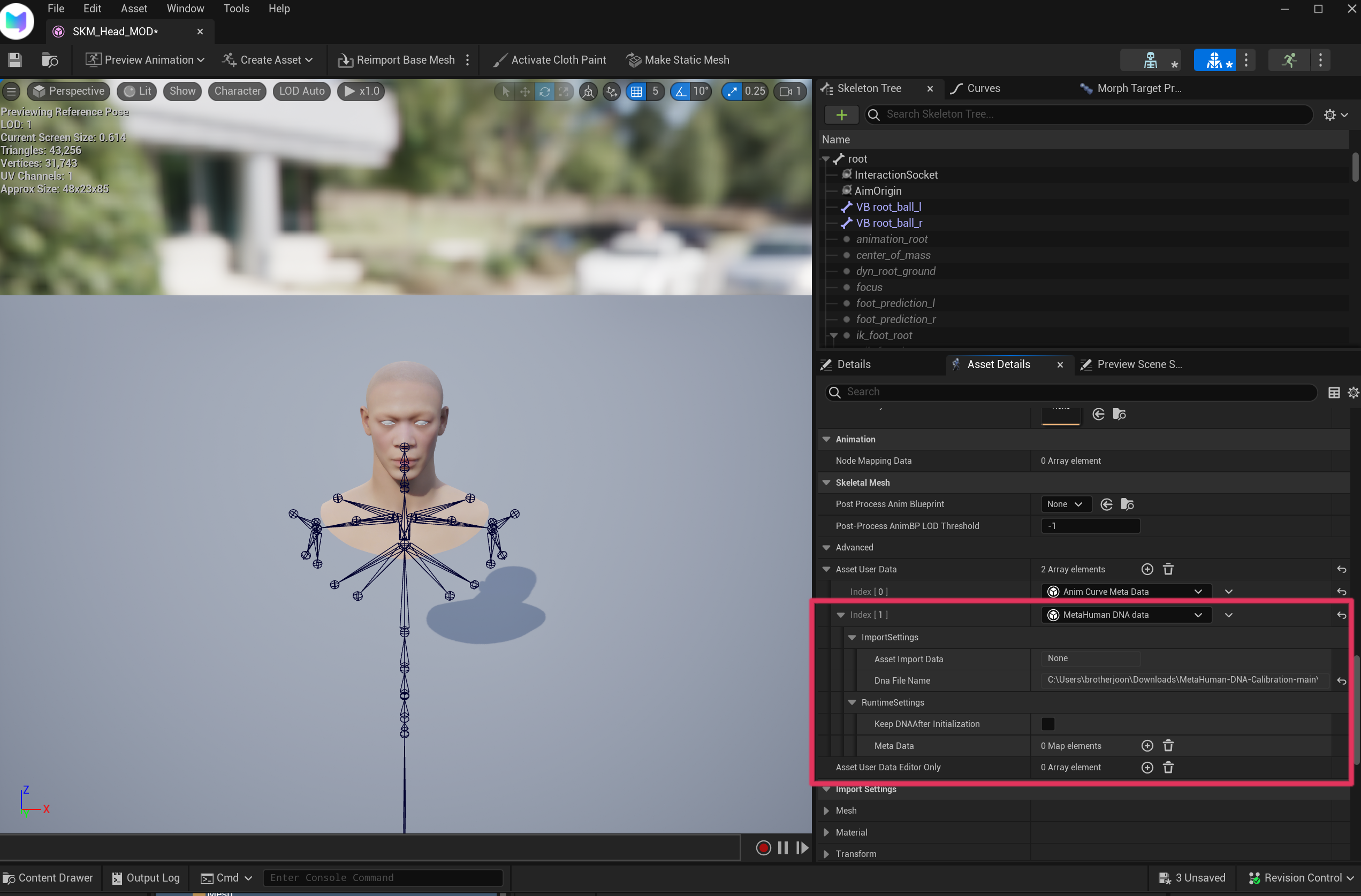
If the import succeeds, MetaHuman DNA Data will appear in the asset settings.
This indicates that the DNA data has been successfully applied.
6.9 Package the Mod
Once the setup is complete, proceed with the packaging process.
Refer to the packaging guide: