Legendary
Prerequisites
The following items must be prepared in advance.
0.1 Create an Epic Games Account
- Click Sign In in the top right corner
- If you do not have an account, proceed with Sign Up
- Complete email verification
Note
Legendary is a CLI tool that uses the Epic Games API, so an Epic Games account is required.
0.2 Install Epic Launcher (Recommended)
- Install the Launcher
- Log in with your Epic account
- Confirm that inZOI ModKit is added to your account library
Warning
If the ModKit is not in your library, the download may not be available.
0.3 Recommended: Use PowerShell
It is recommended to use Windows PowerShell or Windows Terminal.
1. Install Python 3.9
1.1 Download
Download the Python 3.9 installer from the official website.
(Legendary recommends using Python 3.9.)
Official page:
Download item:
- Windows installer (64-bit)
1.2 Required Installation Options
Installation screen:
✓ Add Python 3.9 to PATH
✓ Install launcher for all users
If these options are not checked, subsequent commands may not work properly.
1.3 Verify Installation
python --version
py -0
Expected output:
Python 3.9.x
Installed Pythons:
- 3.11-64
- 3.9-64
2. Virtual Env (Python 3.9)
2.1 Create a Working Directory
mkdir C:\legendary_env
cd C:\legendary_env
2.2 Create a Python 3.9 Virtual Environment
On Windows, use the Python Launcher (py) instead of python3.9:
py -3.9 -m venv venv
2.3 Activate the Virtual Environment
venv\Scripts\activate
Make sure (venv) appears at the beginning of the command prompt.
Verify the Python version:
python --version
→ Python 3.9.x
3. Install Legendary
3.1 Update pip
python -m pip install --upgrade pip
3.2 Install Legendary
pip install legendary-gl
Verify the installation:
legendary --version
4. Epic Account Auth (Required Step)
Legendary requires authentication at least once.
legendary auth
When your browser opens, log in with your Epic account.
Upon successful authentication:

- The authentication token is stored locally.
- Re-authentication is not required afterward.
5. Check Available Games
legendary list-games
Example output:

Note
Make sure to use the exact App name displayed in the list-games output.
6. Download inZOI ModKit
6.1 Basic Installation
legendary install inzoi_modkit
6.2 Install a Specific Version
legendary install "inZOI ModKit" --version [version_name]
Example output:
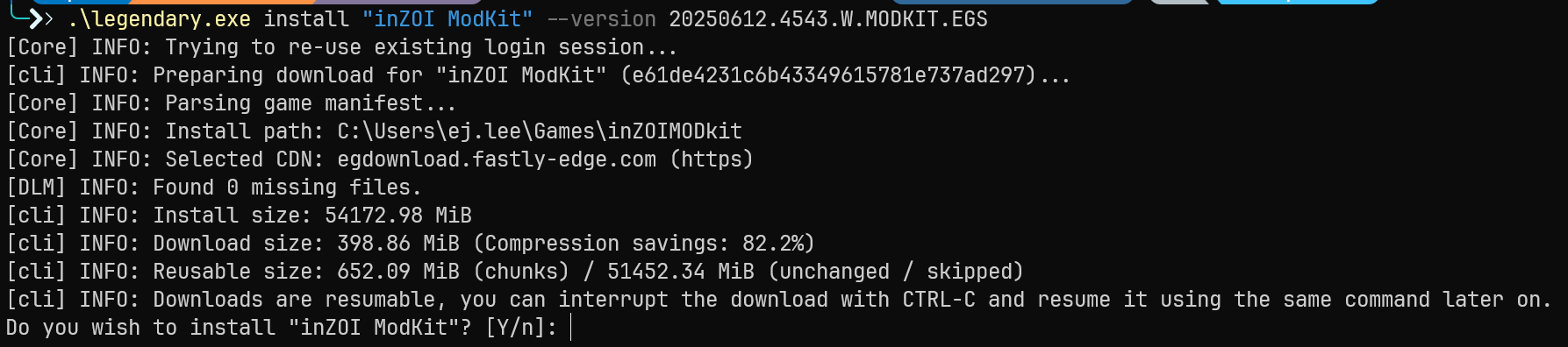
Press Y to continue when prompted.
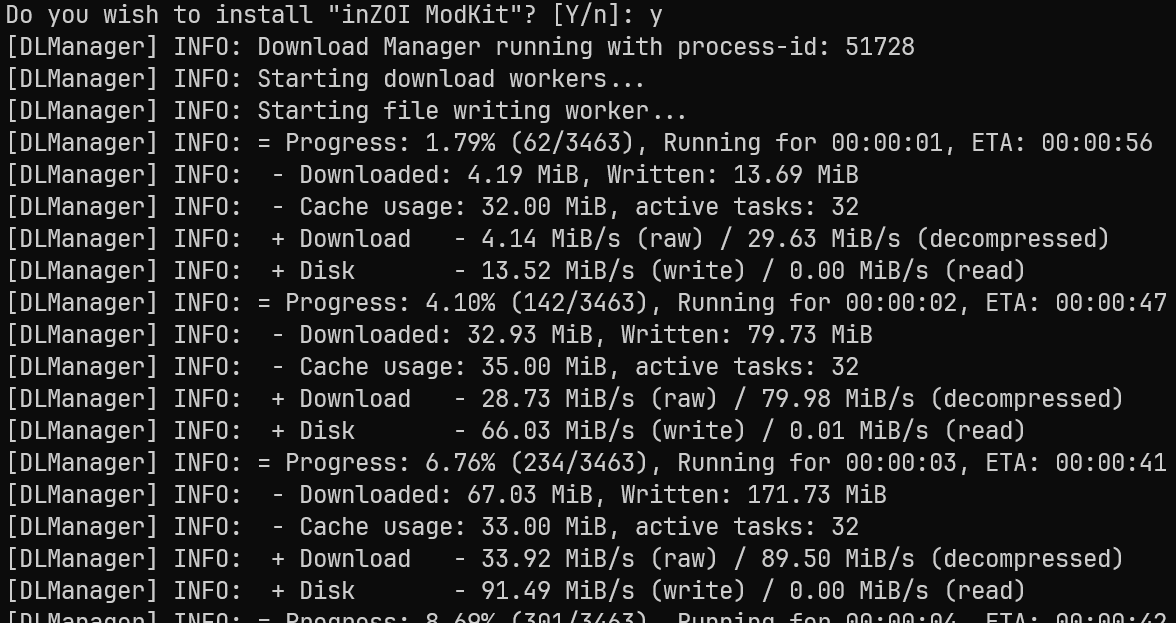
6.3 Verify Installed Items
legendary list-installed
7. Launching the ModKit
Navigate to the installation directory and run the executable file directly.
Or use:
legendary launch inzoi_modkit
8. Troubleshooting
❌ python3.9 not recognized
On Windows, the following command may not exist:
python3.9
Instead, use:
py -3.9
❌ No saved credentials
ValueError: No saved credentials
Solution:
legendary auth
Authentication must be completed first.
❌ Microsoft Store Python conflict
Go to:
Settings → Apps → Advanced app settings → App execution aliases
Disable the following:
python.exepython3.exe
❌ Mixing administrator and normal permissions
Legendary stores authentication credentials in the user directory.
- Running
authin Administrator PowerShell - Running
list-gamesin normal PowerShell
→ May result in a "no credentials" error.
Always use the same permission level consistently.
9. Reuse Virtual Env
When working again later:
cd C:\legendary_env
venv\Scripts\activate
To deactivate:
deactivate
10. Command Summary
py -3.9 -m venv venv
venv\Scripts\activate
python -m pip install --upgrade pip
pip install legendary-gl
legendary auth
legendary list-games
legendary install inzoi_modkit