Rigging
4.1 Open the Processed MetaHuman Rig
After running Process, the configured MetaHuman rig opens in Maya.
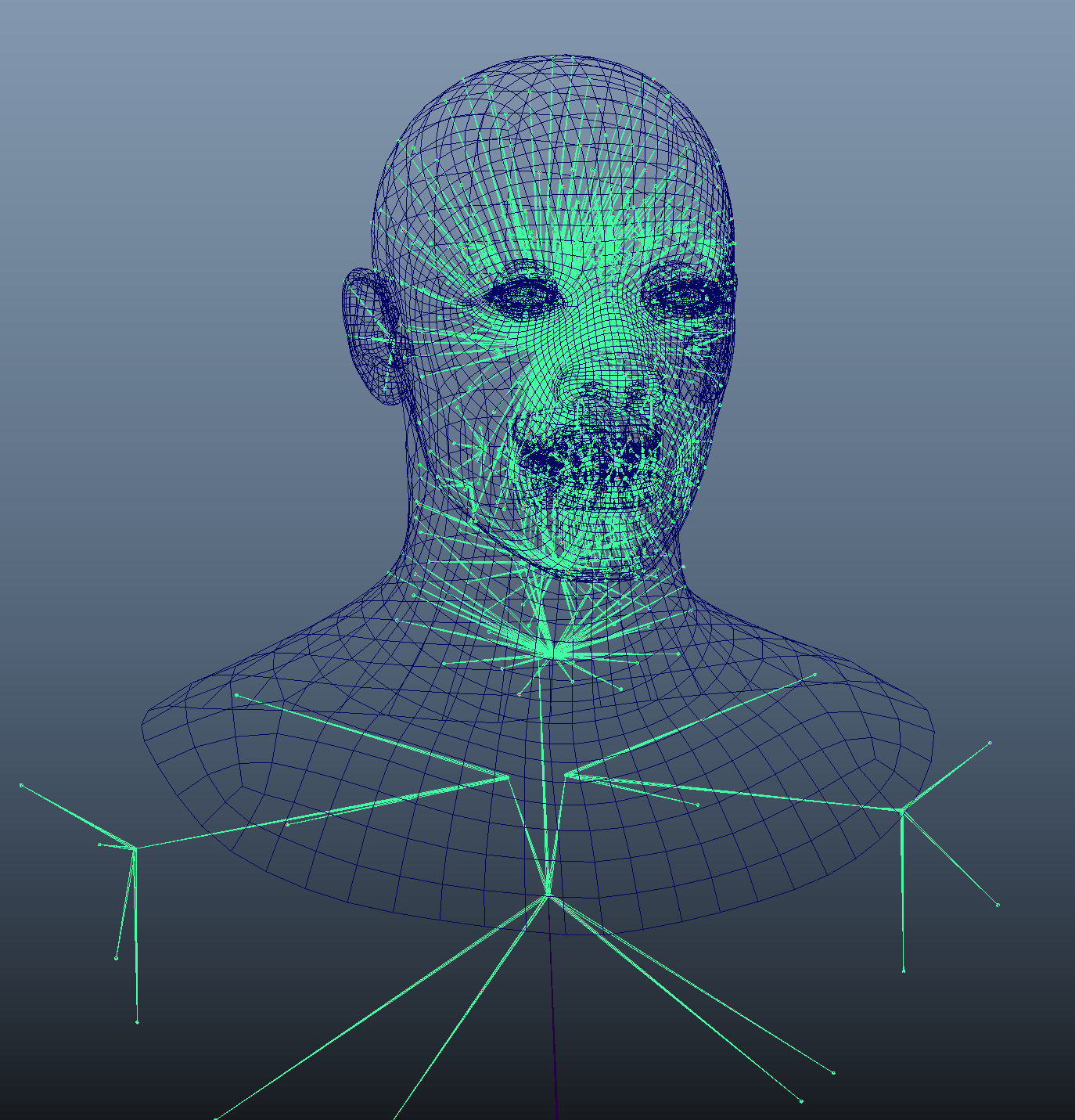
4.2 Change Animation Preferences
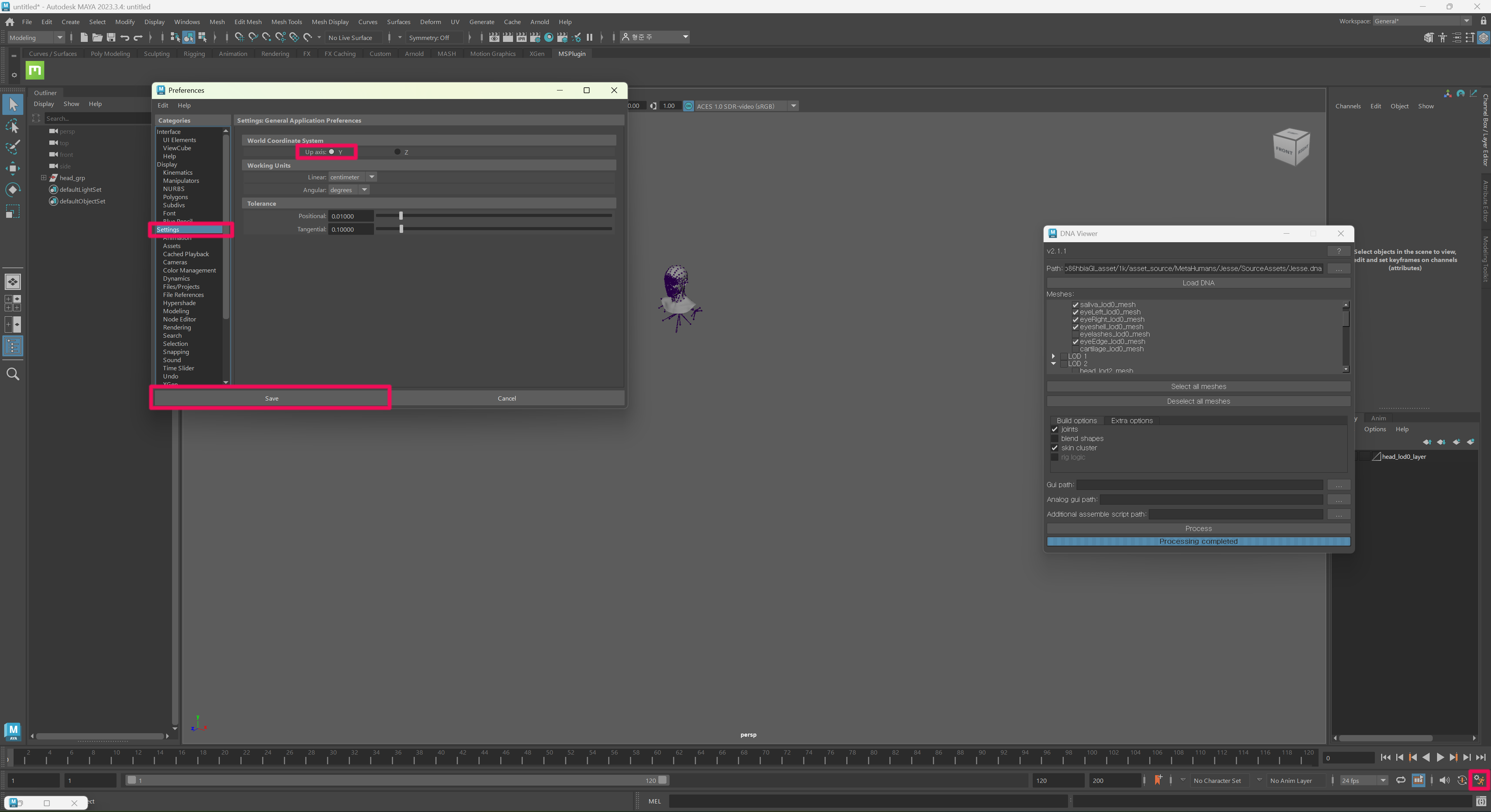
If the file is processed correctly, go to:
Animation Preferences → Settings
Set the axis to Y, then click Save.
4.3 Export the Current Skin Weights
First, save the skin weights of all related objects.
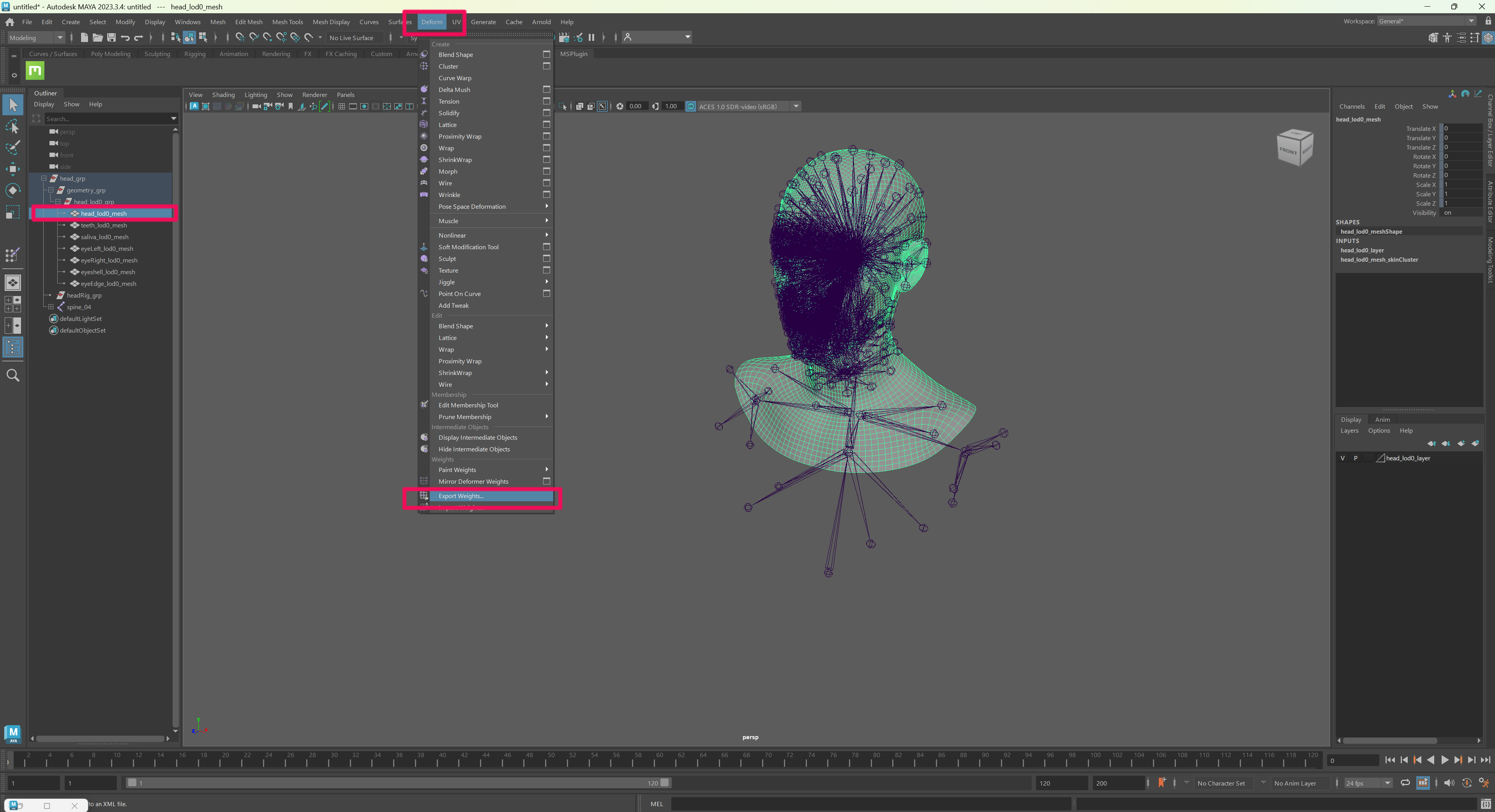
Save the file and export the skin weights.
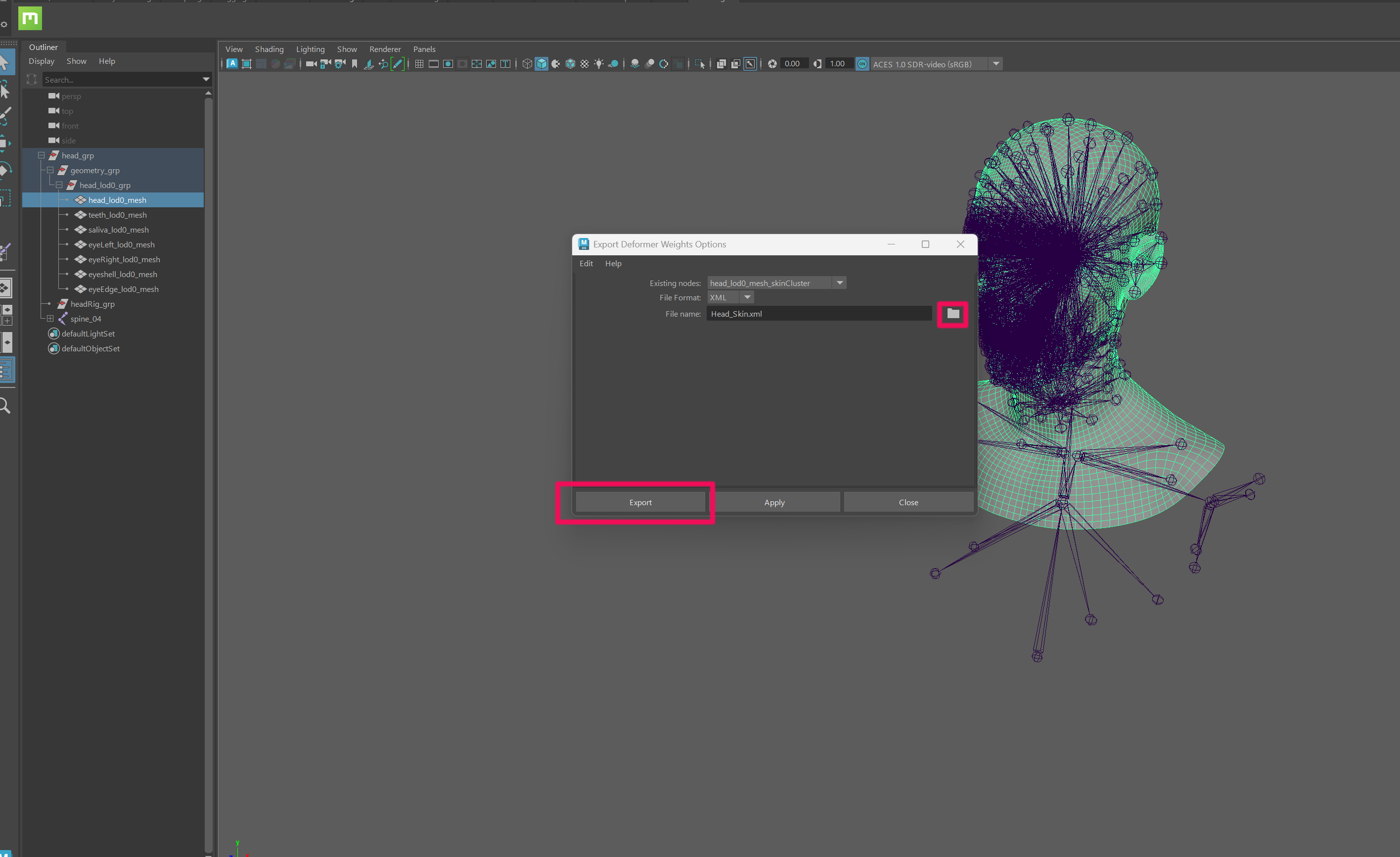
4.4 Export Skin Weights for All Related Head Meshes
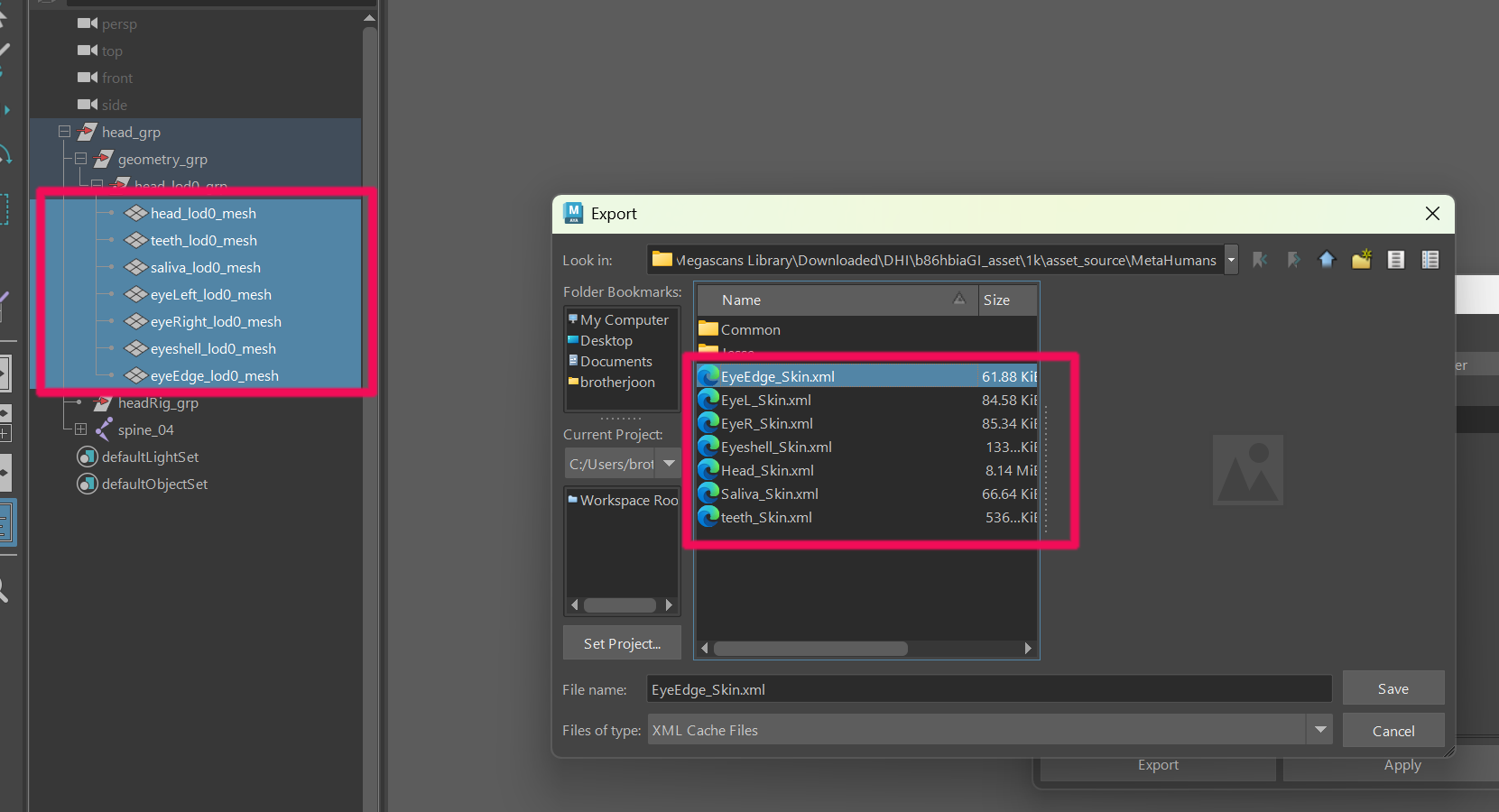
Export the skin weights for all of the following meshes:
head_lod0_meshteeth_lod0_meshsaliva_lod0_mesheyeLeft_lod0_mesheyeRight_lod0_mesheyeshell_lod0_mesheyeEdge_lod0_mesh
Save all related files as shown below using Skin Weight Export.
4.5 Import the Base Mesh Used In-Game
Load the base mesh used by the in-game character.
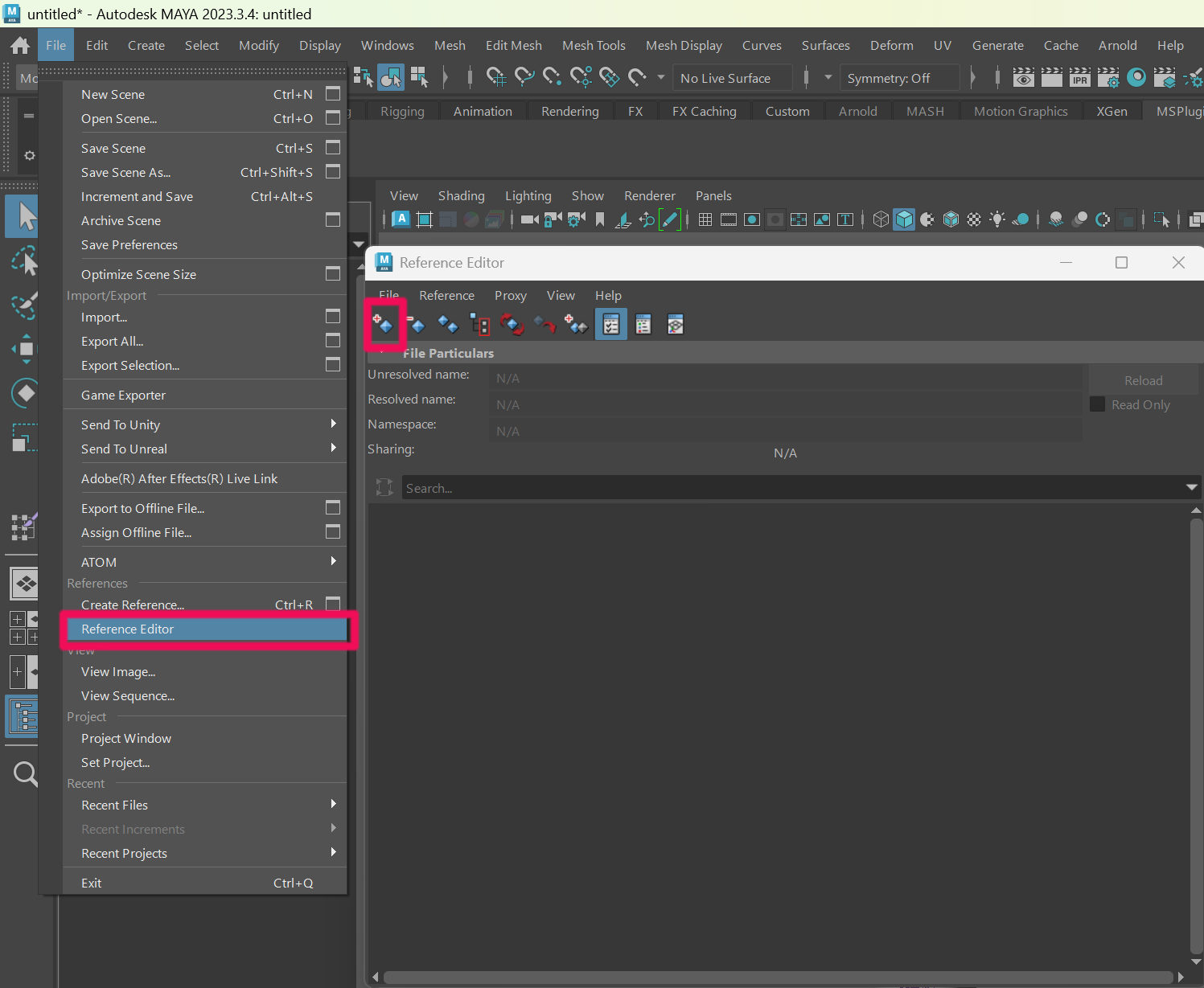
Go to:
File → Reference Editor → Add
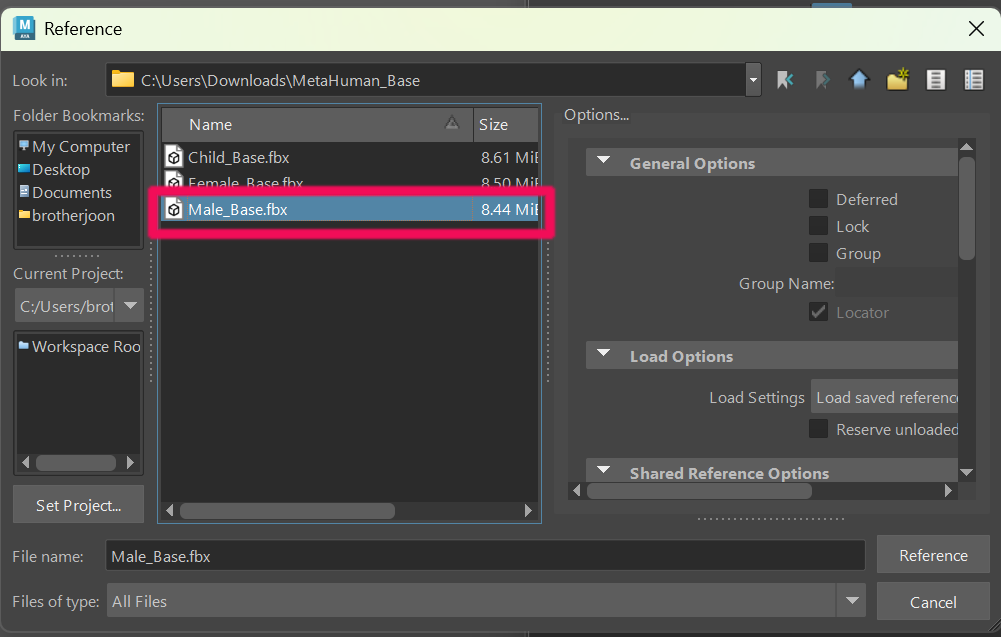
Use the file inside:
MetaHuman_Base.zip
Choose the FBX file that matches the target gender / age.
For example, for an adult male, reference:
Male_Base.FBX
4.6 Hide the Body-Related Meshes
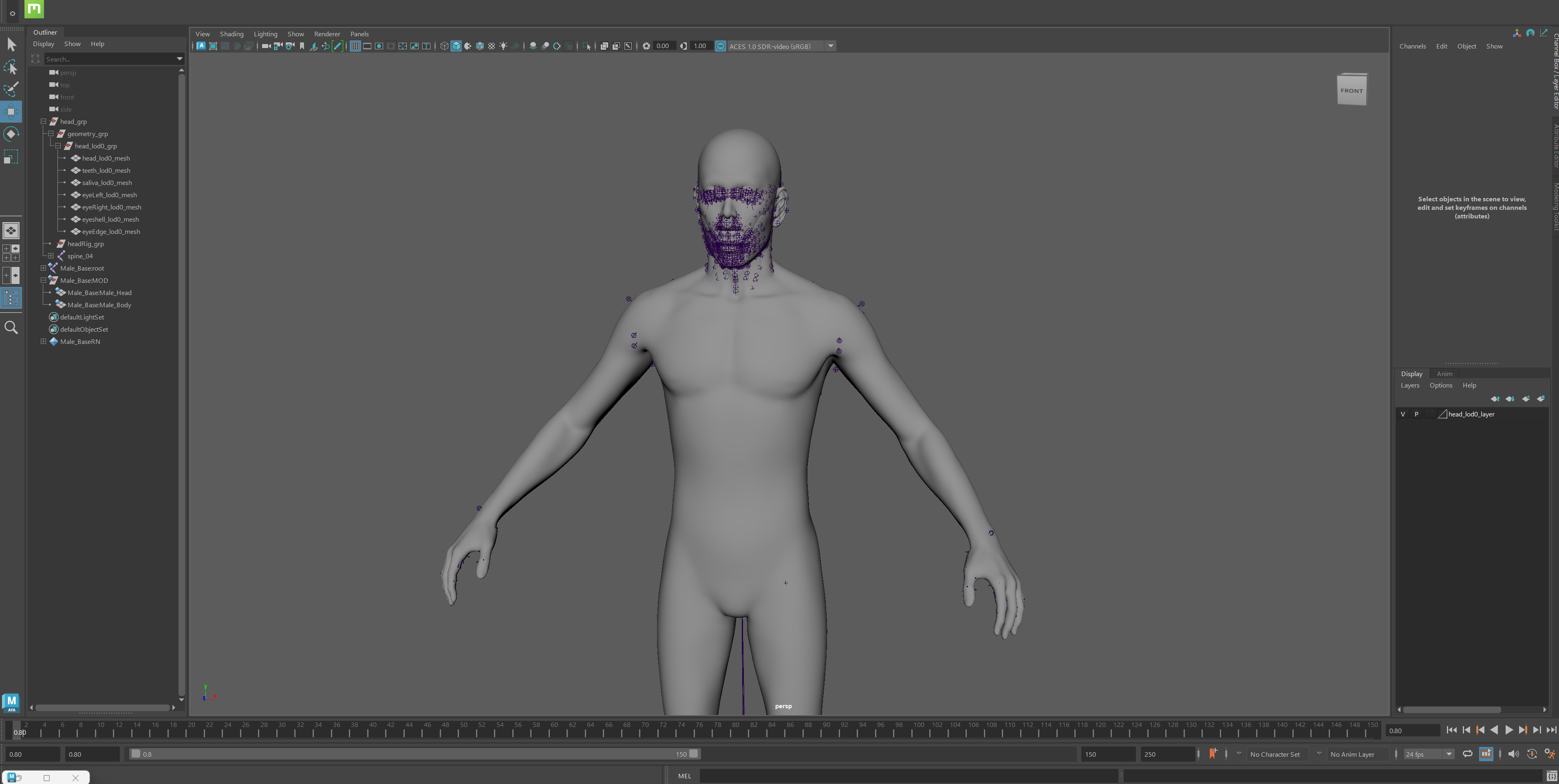
Once the base mesh is loaded as shown below, hide all body-related parts first so you can focus on head work.
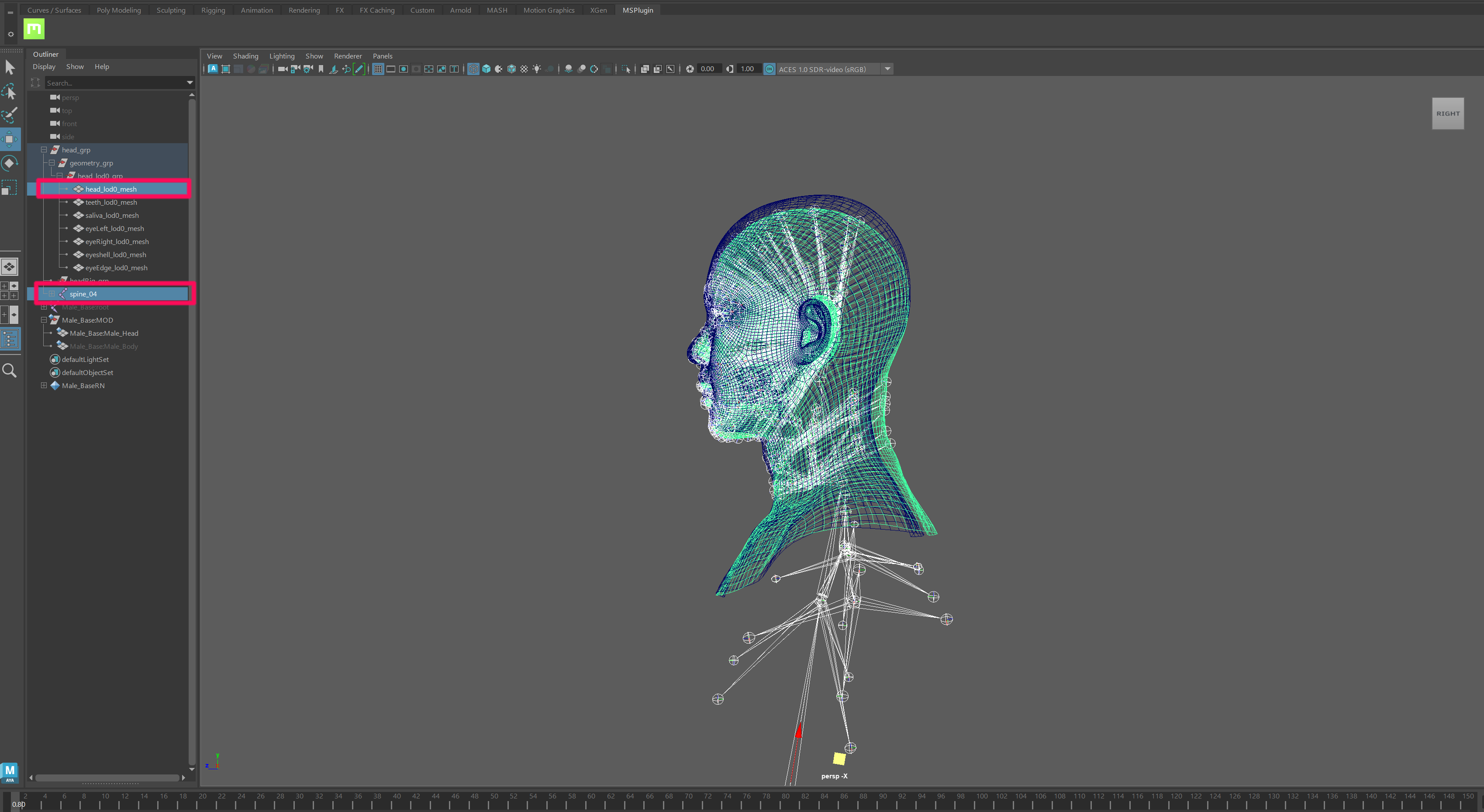
4.7 Align the New Head to the Base Mesh
Match the new head to the base mesh as closely as possible.
Use:
head_lod0_meshspine_04
Move the new head until it matches the base mesh as closely as possible.
The front alignment is already mostly correct, so adjust primarily in the Left or Right view.
4.8 Delete History from the New Head Objects
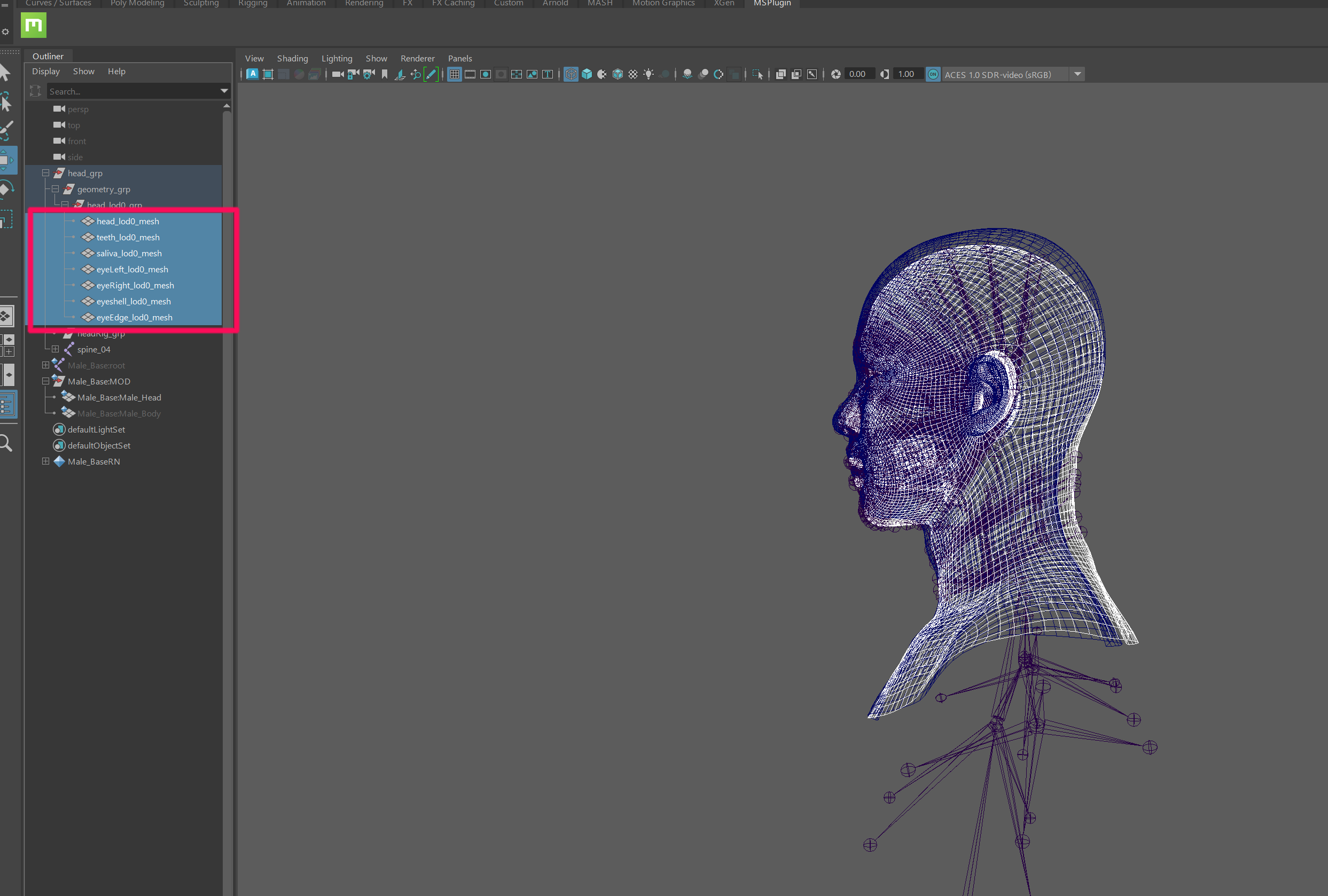
Select all objects inside:
head_lod0_grp
Then delete history:
Shift + Alt + D
Skin weights will be removed at this stage.
In other words, even if you move the joints, the mesh will no longer deform.
4.9 Detach FACIAL_C_FacialRoot and Remove the Existing Upper Hierarchy
First select:
head_grp → spine_04 → Spine_05 → neck_01 → neck_02 → FACIAL_C_FacialRoot
Set its value to 0, 0, then delete the keyed values stored on the frame.
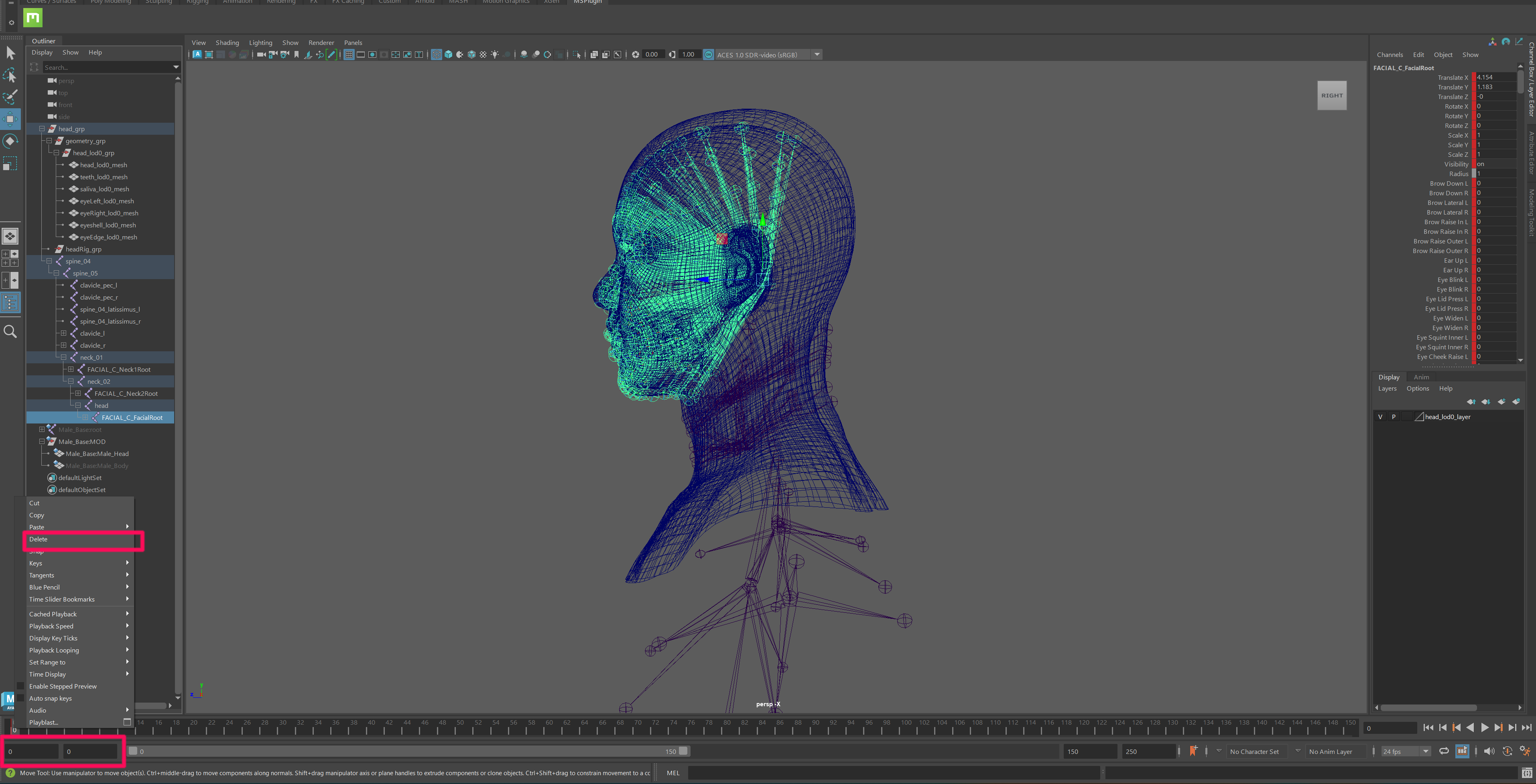
After that, remove FACIAL_C_FacialRoot from the hierarchy using:
Shift + P
This is done to keep FACIAL_C_FacialRoot fixed.
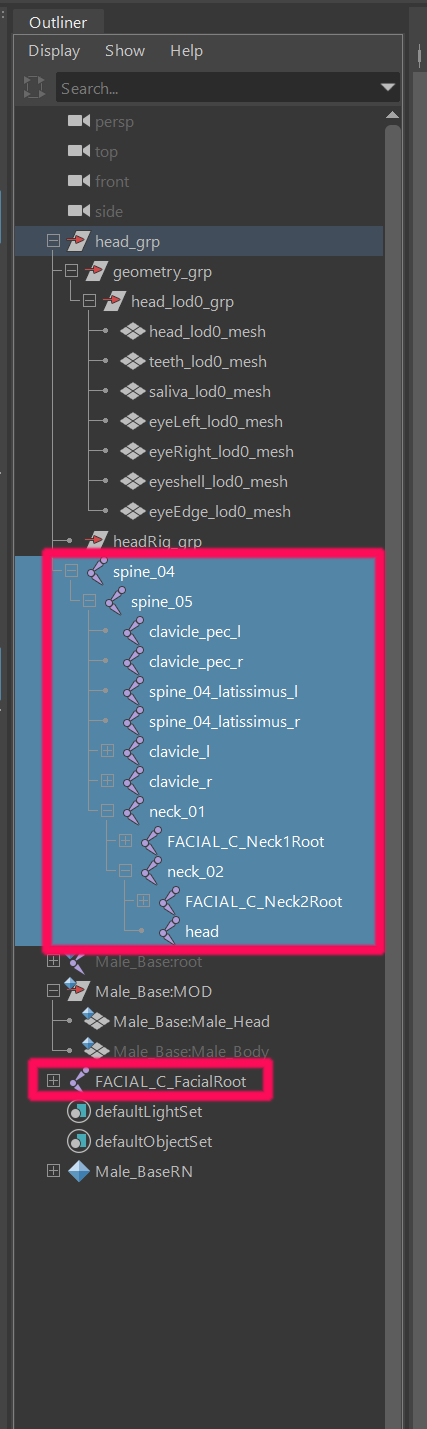
Then delete the entire hierarchy including:
spine_04
4.10 Import the Target Skeleton and Reattach FACIAL_C_FacialRoot
Import the FBX file that matches the target gender / age from:
MetaHuman_Skeleton_01.zip
For example, for an adult male, import:
Male_Skeleton_01.FBX
Then place:
FACIAL_C_FacialRoot
under the following hierarchy:
spine_04 → Spine_05 → neck_01 → neck_02 → head
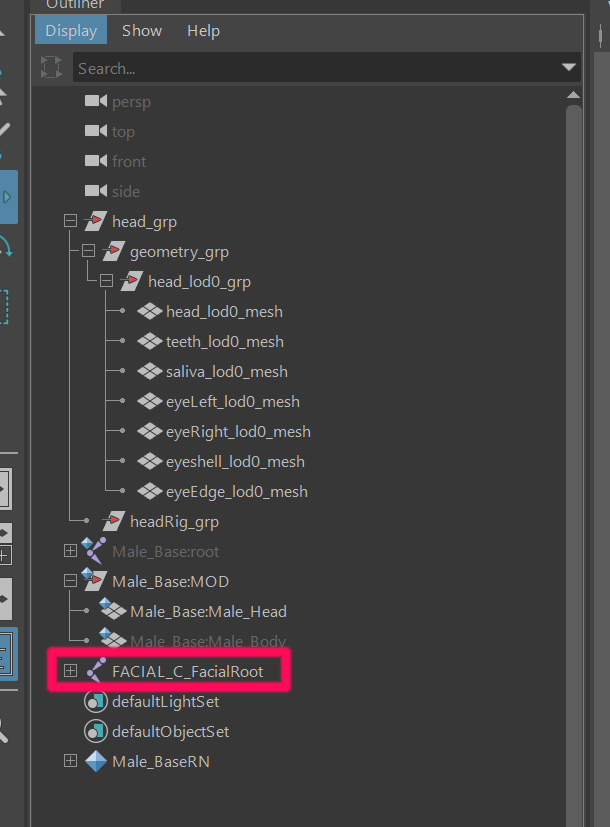
Result:
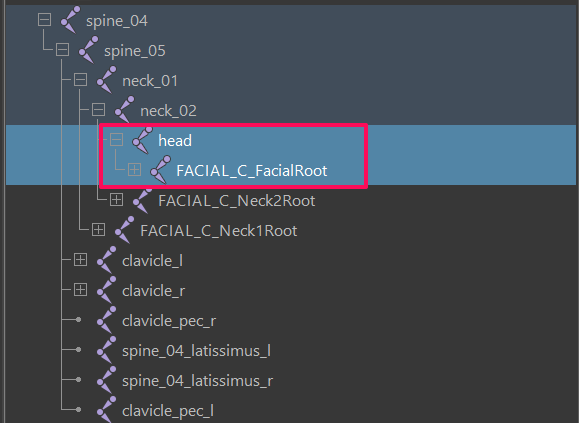
4.11 Neckline Matching
Because the inZOI body mesh and the newly extracted MetaHuman head cannot be combined directly,
the neckline must be manually aligned in Maya.
• Neckline Matching
From the referenced base mesh, select the Head mesh,
then select the new head head_lod0_mesh and apply a Blend Shape.
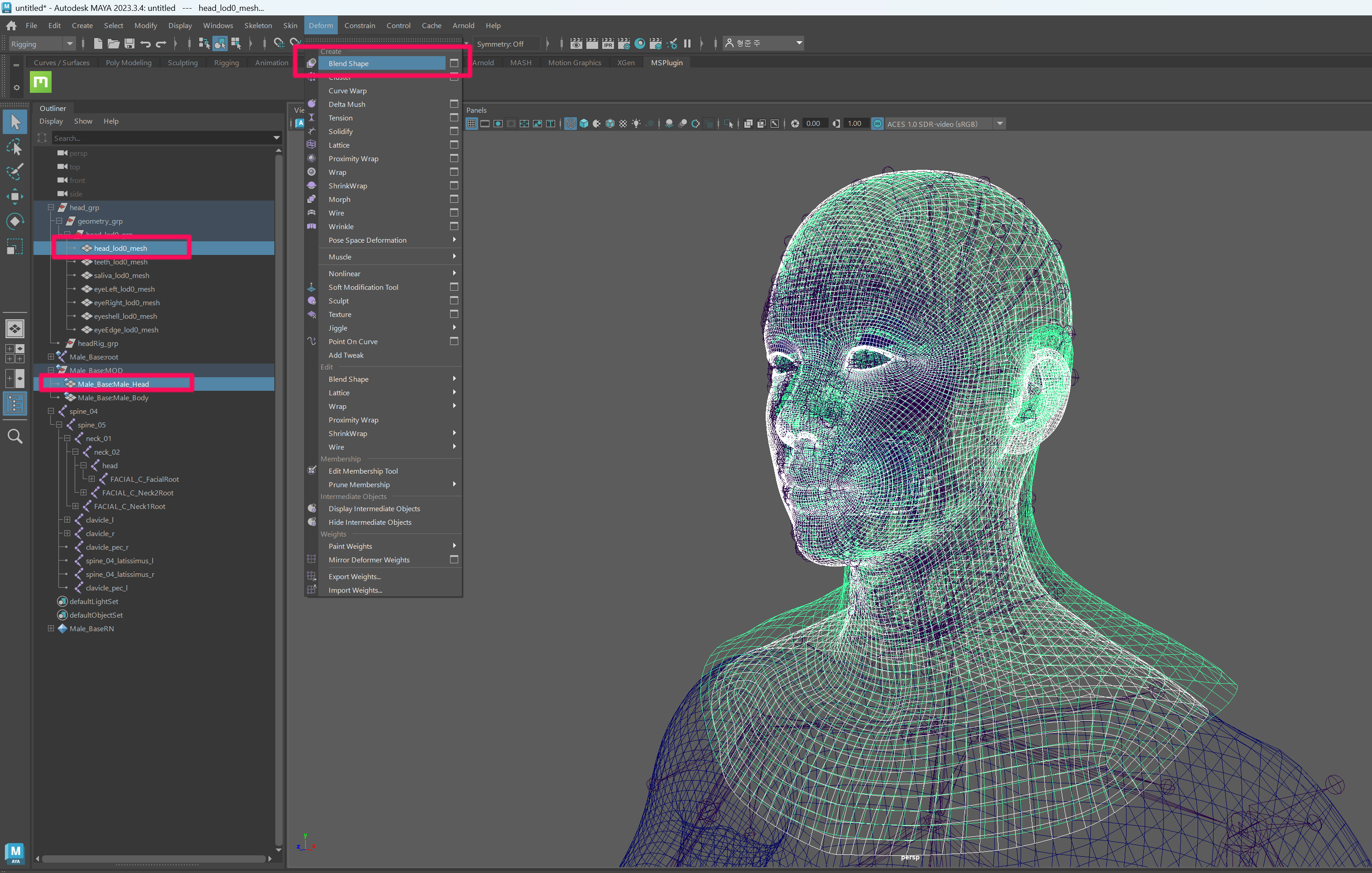
After applying the blend shape, the new head will align with the base head mesh.
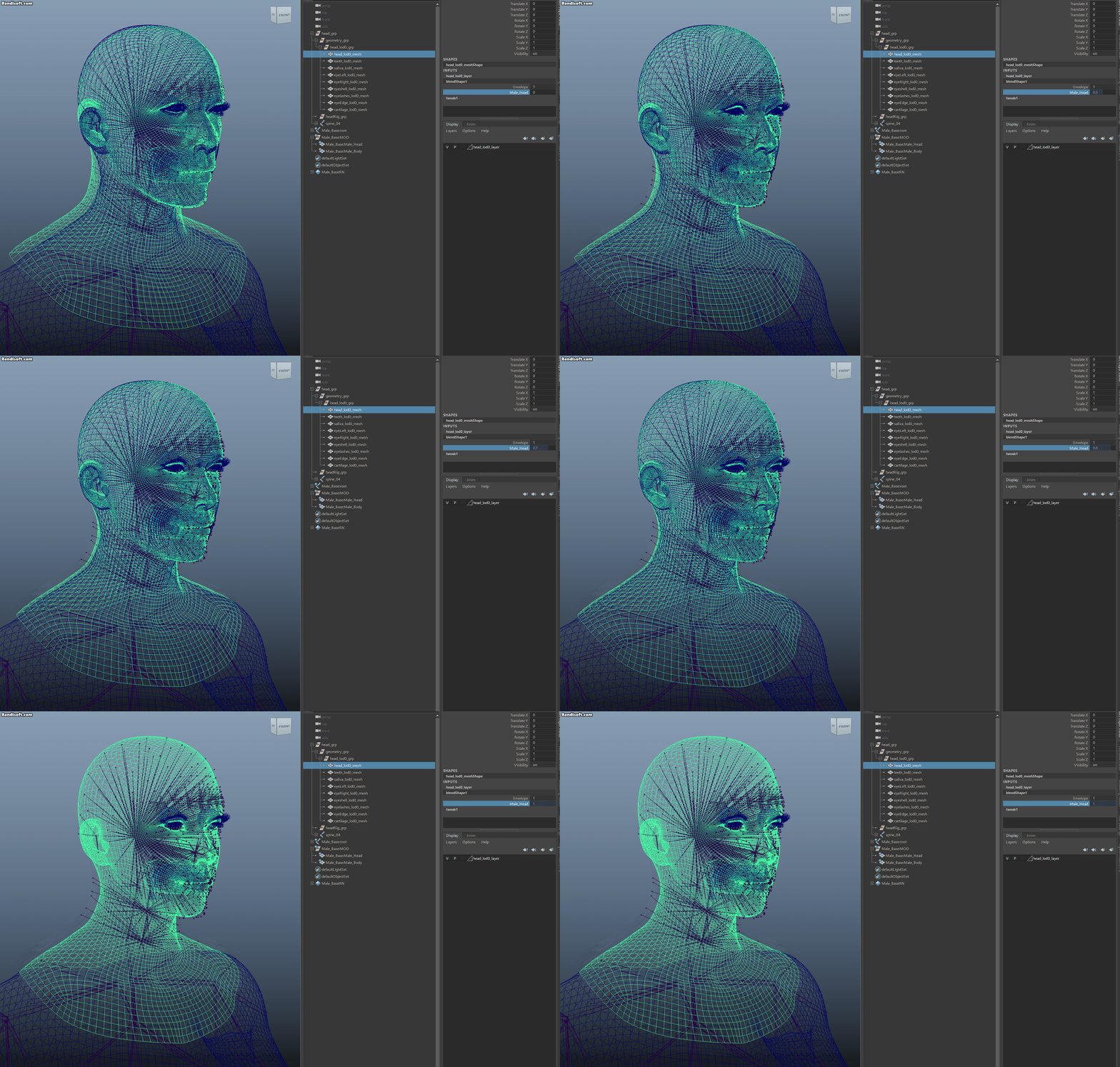
The blend shape should only affect the neckline area.
Remove blend shape weights from the rest of the mesh except the neck area.
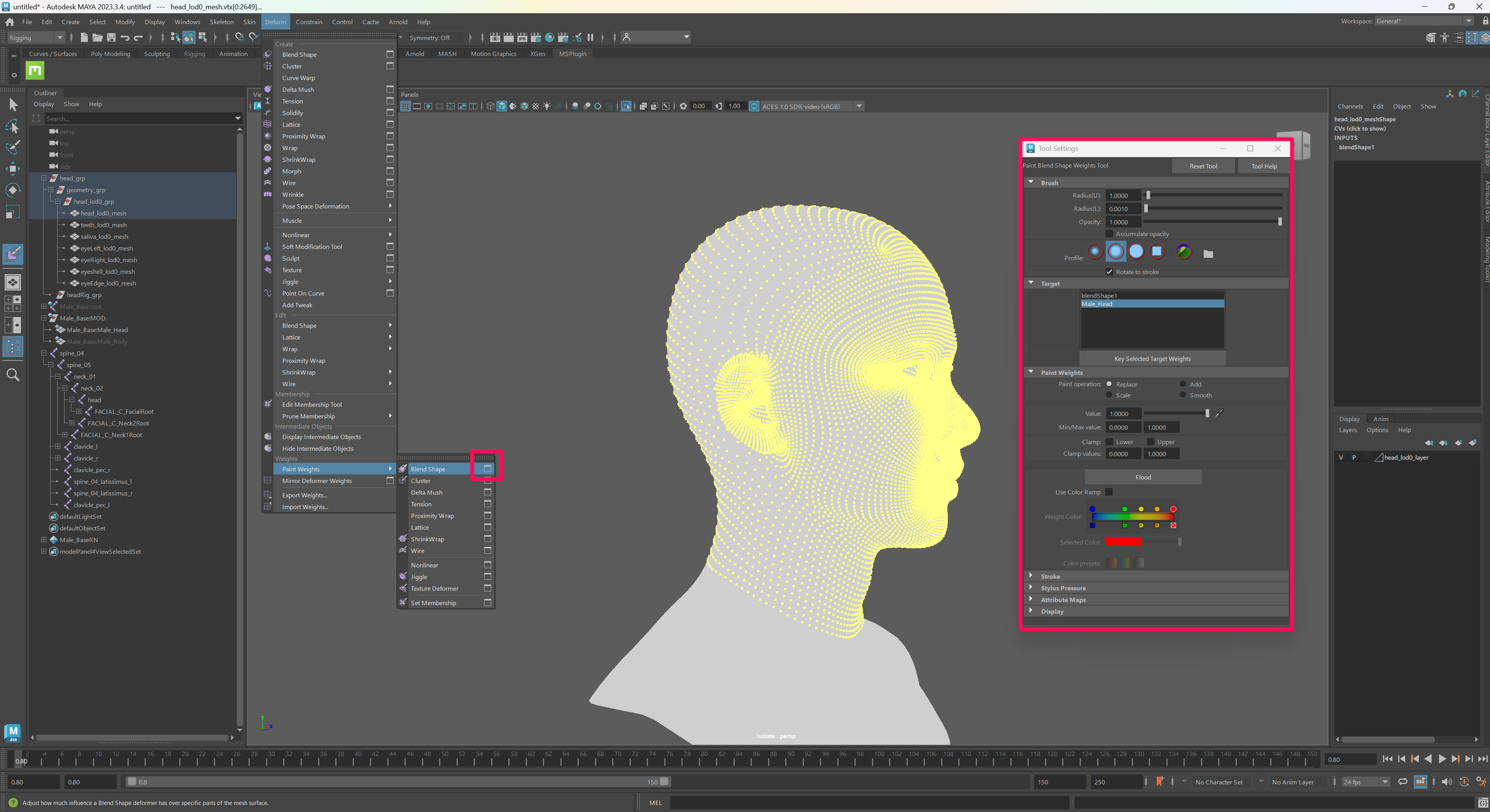
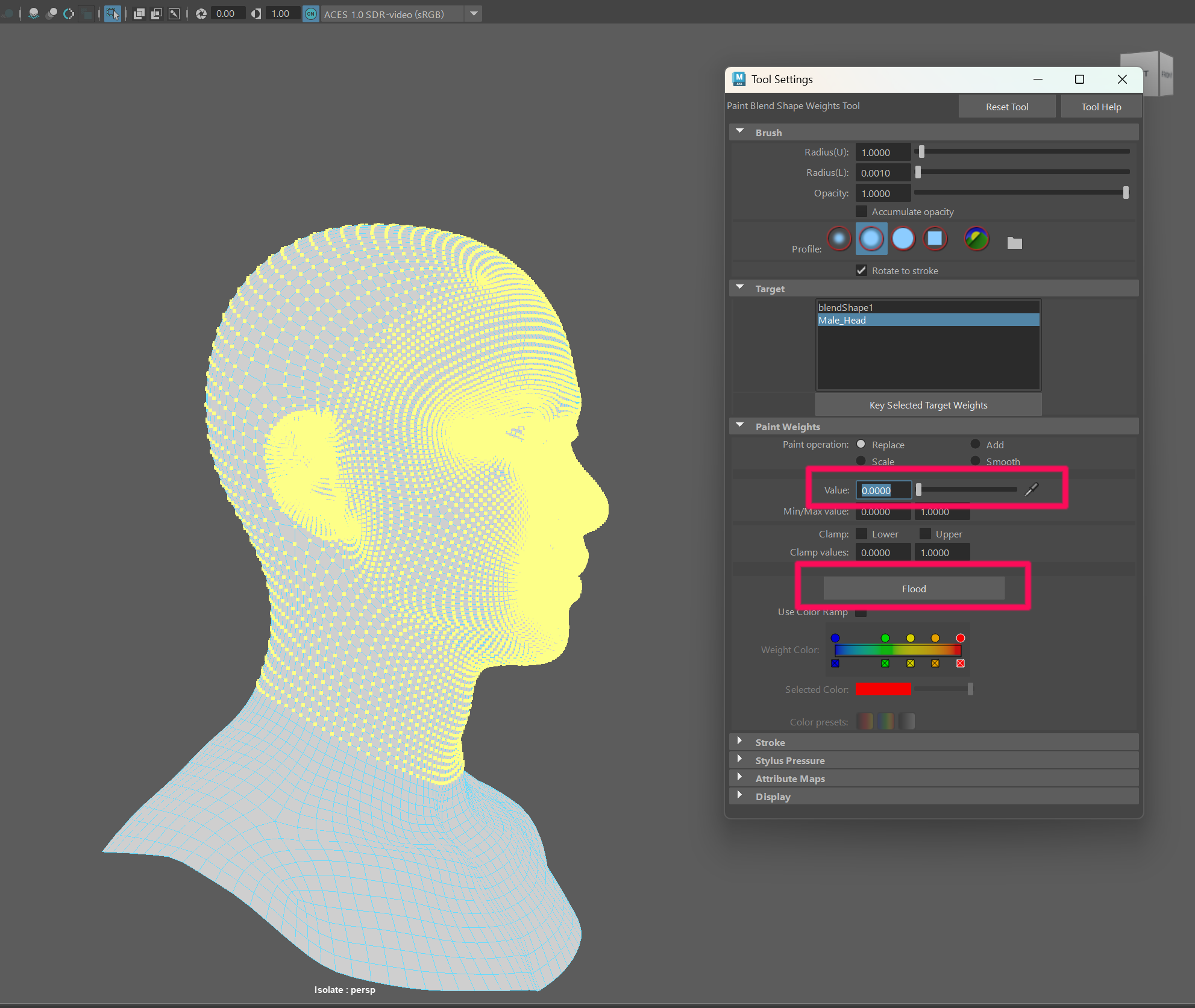
In Paint Weights → Blend Shape, change the value from 1 → 0 and press Flood.
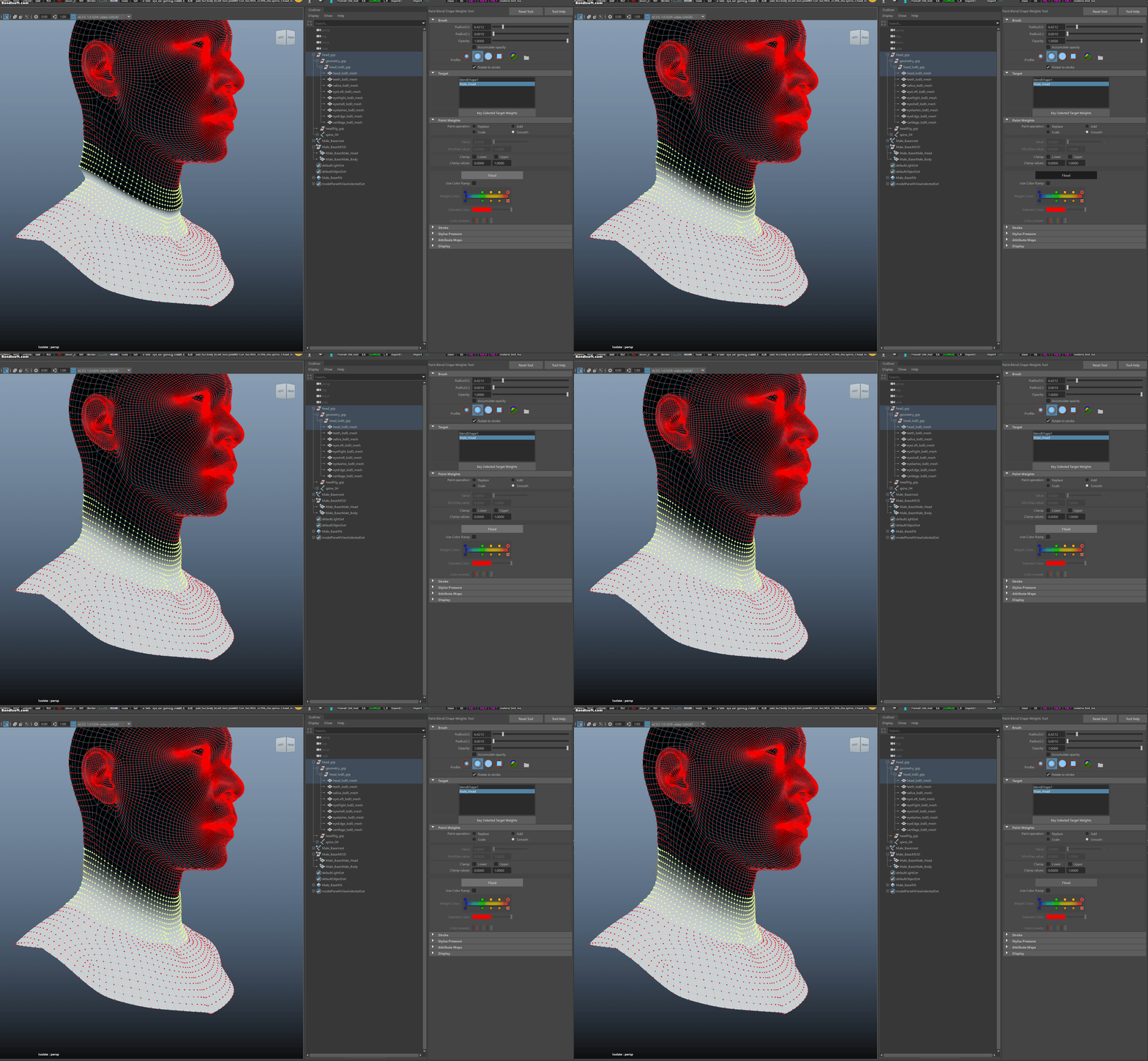
Next, select the protruding neck area and return to Paint Weights → Blend Shape.
Change Paint operation → Replace → Smooth, then press Flood.
When the neckline is properly aligned, delete the history of head_lod0_mesh once more.
Select the mesh and press:
Shift + Alt + D
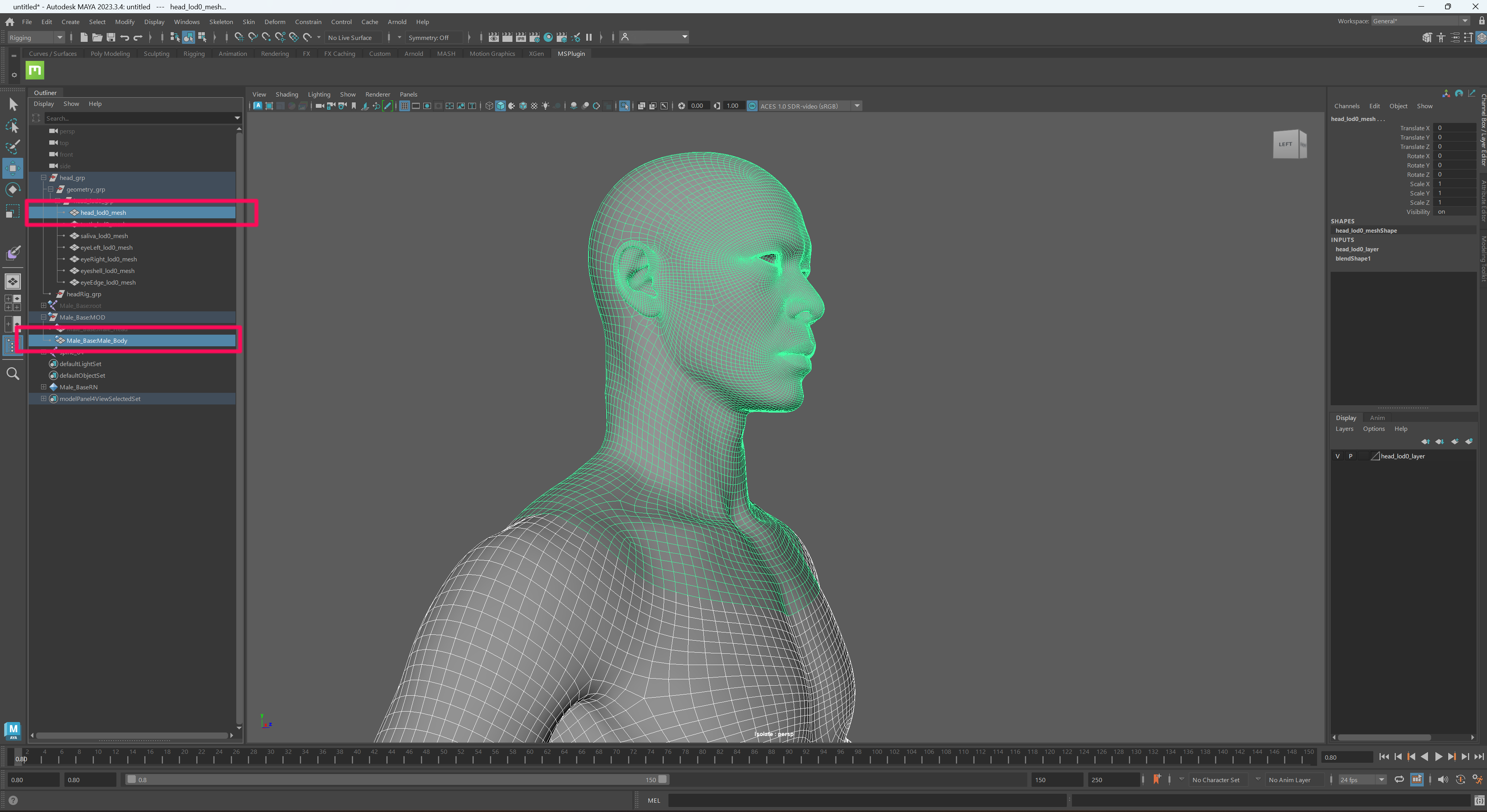
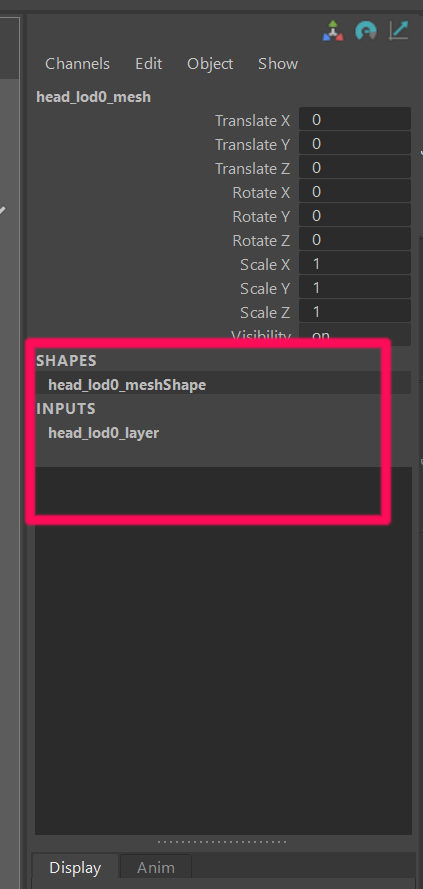
SHAPES: head_lod0_meshShape
4.12 Remove Base Mesh Reference
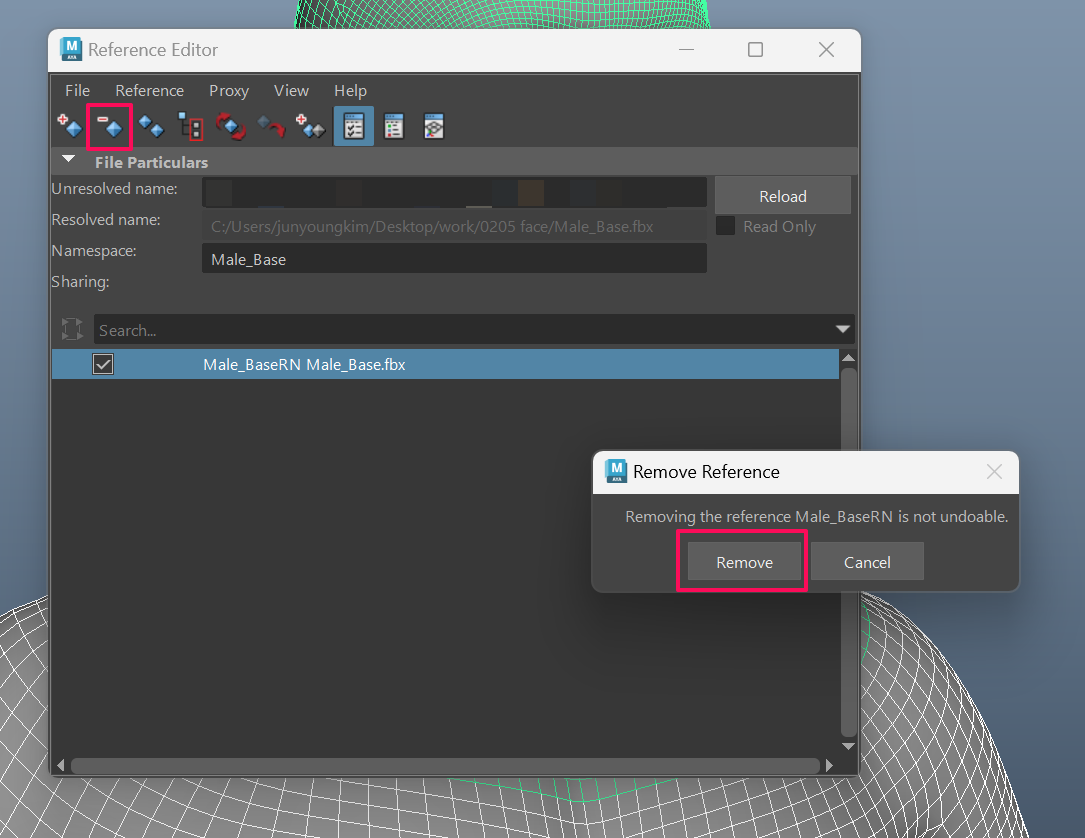
Remove the previously imported base mesh from the reference.
File → Reference Editor → Select File → Remove Reference
4.13 Export the Head
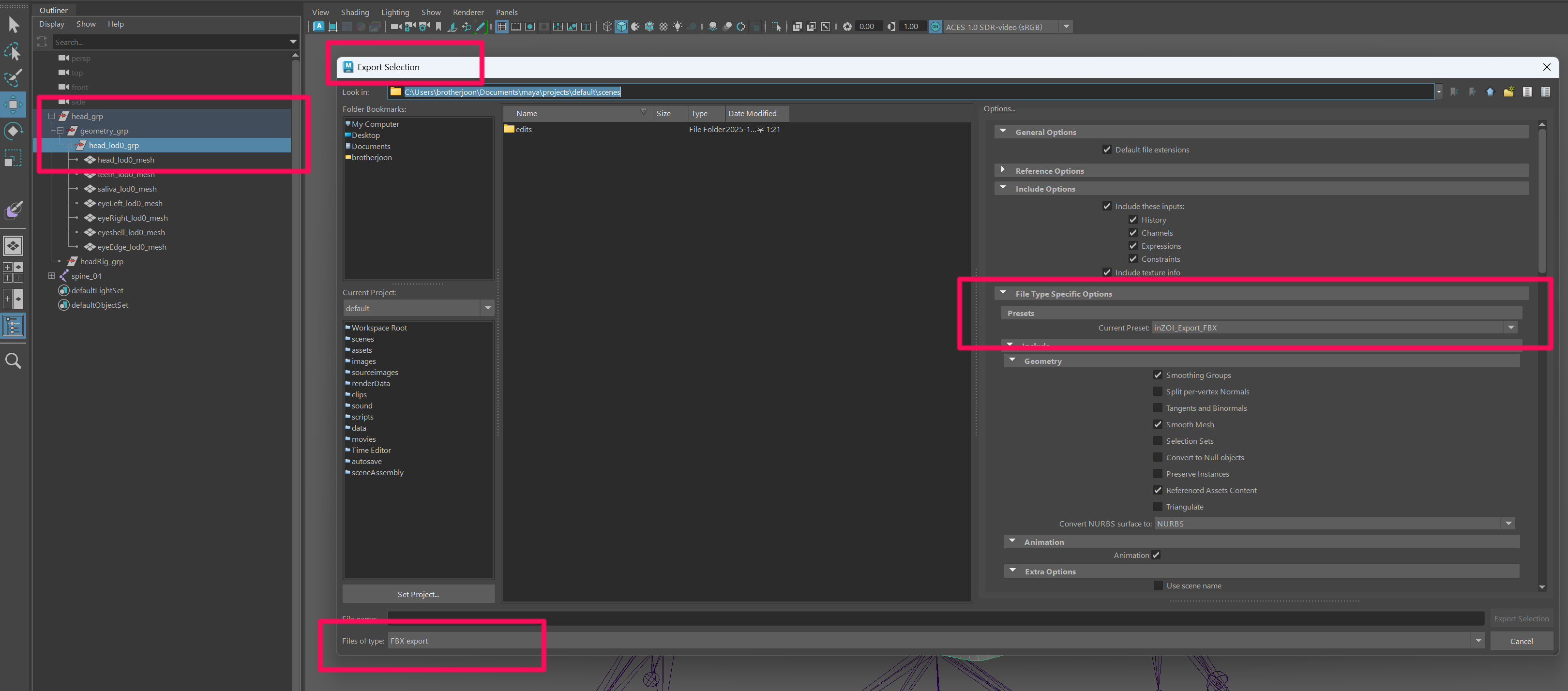
Select the group head_lod0_grp and export it as FBX.
File → Export Selection
Change the preset to:
inZOI_Export_FBX
If the preset does not exist, refer back to the DNA Setup step.
Save the file as:
MOD.FBX
4.14 Run the DNA Update Script
After exporting, run the following script.
This extracts a new DNA so that the MetaHuman rig can be updated based on the modified joint positions.
# Force define __file__
__file__ = "C:/.../MetaHuman-DNA-Calibration-main/examples/dna_viewer_grab_changes_from_scene_and_propagate_to_dna.py"

# Execute the script
exec(open(__file__).read())