Export
2.1 Launch Quixel Bridge
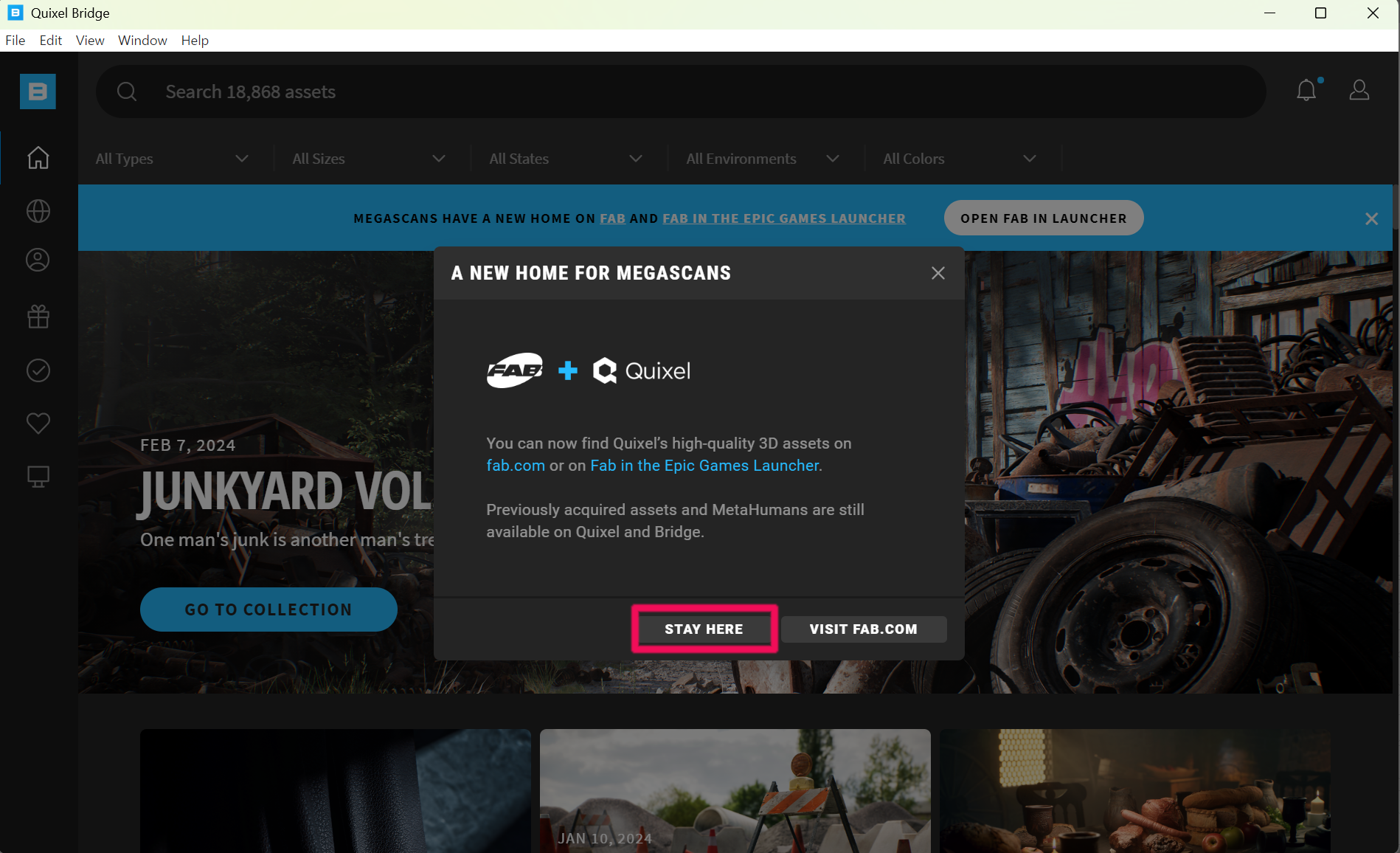
Install and launch Quixel Bridge.
Warning
If the official address changes due to Quixel policy, you may also use the temporary download link below.
2.2 Open My MetaHumans
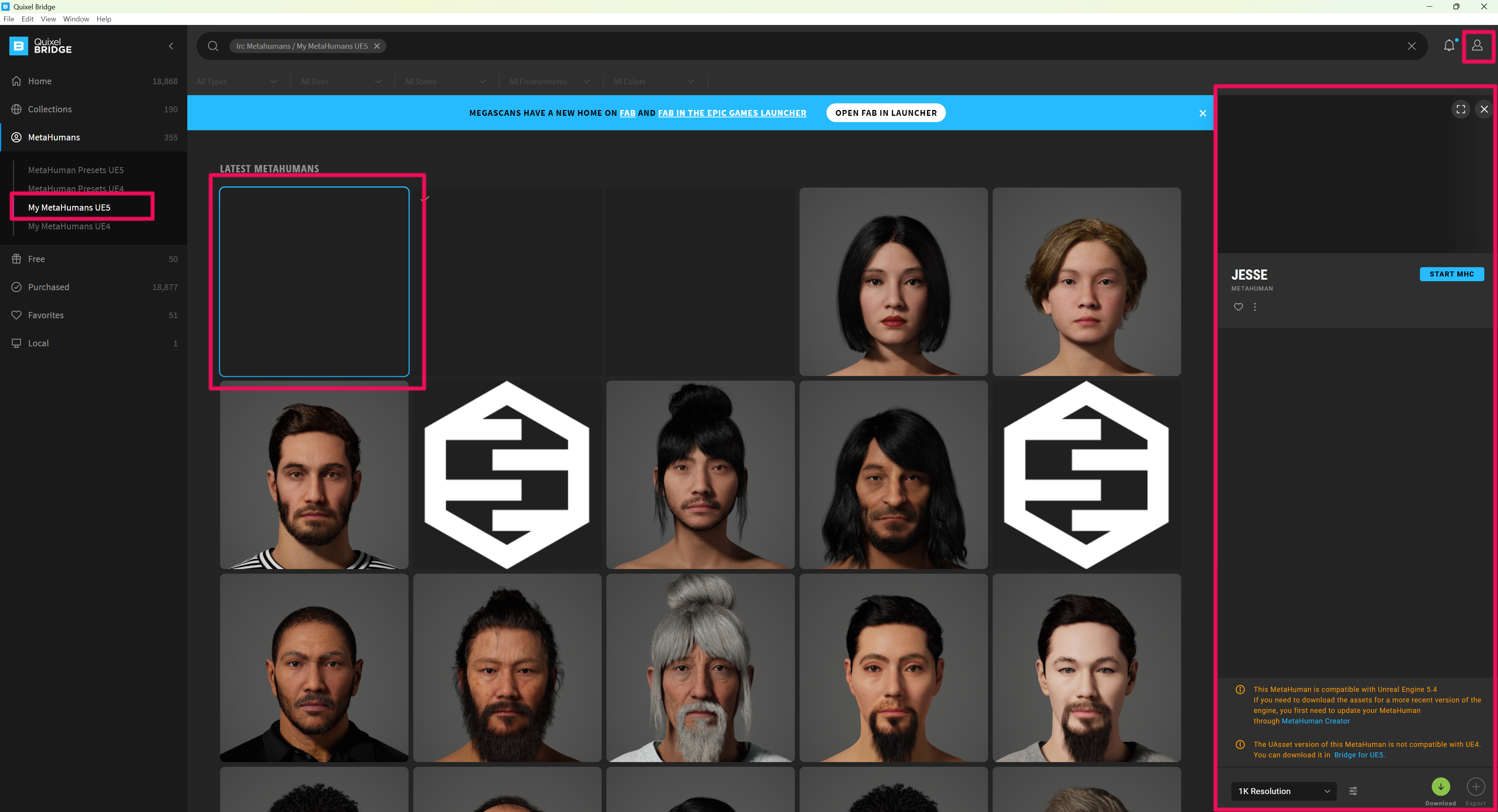
Once Bridge launches, open the My MetaHumans tab. Select the MetaHuman face you created earlier.
2.3 Configure Download / Export Settings
Select the character and open Download Settings and Export Settings.
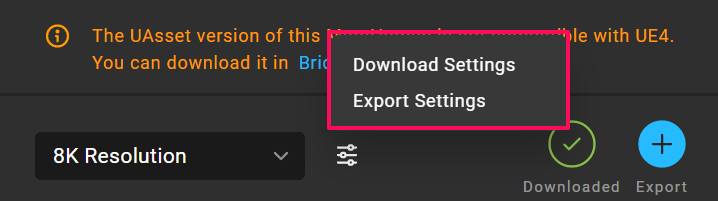
For inZOI, texture assets are not required.
Only configure the following options.
Download Settings
- FBX
- UAsset + Source Asset
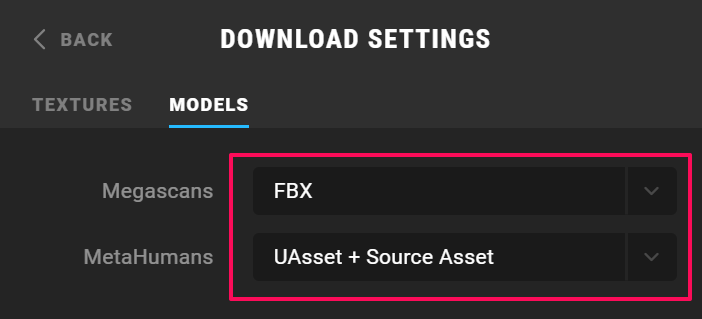
Export Settings
- Set the export target to Maya
2.4 Download and Export
After setting the configuration, press Download.

Once the download is complete, launch Maya and press Export.

2.5 Install the Maya Plugin
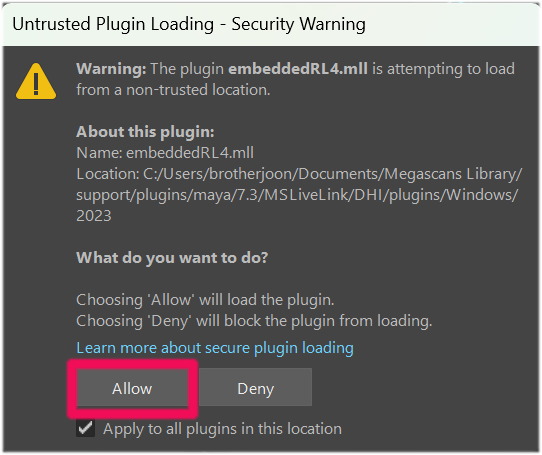
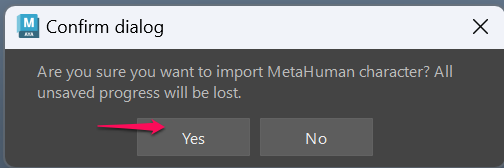
If a plugin installation prompt appears during this process, allow the installation.
In Maya:
- Untrusted Plugin → Allow
- Confirm dialog → Yes
This only needs to be done once.
2.6 Import Progress
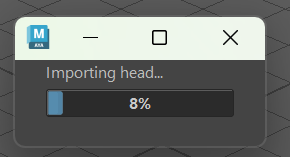
If everything runs correctly, Maya will begin importing the head data.
2.7 Verify the Imported Character
When the import is finished:
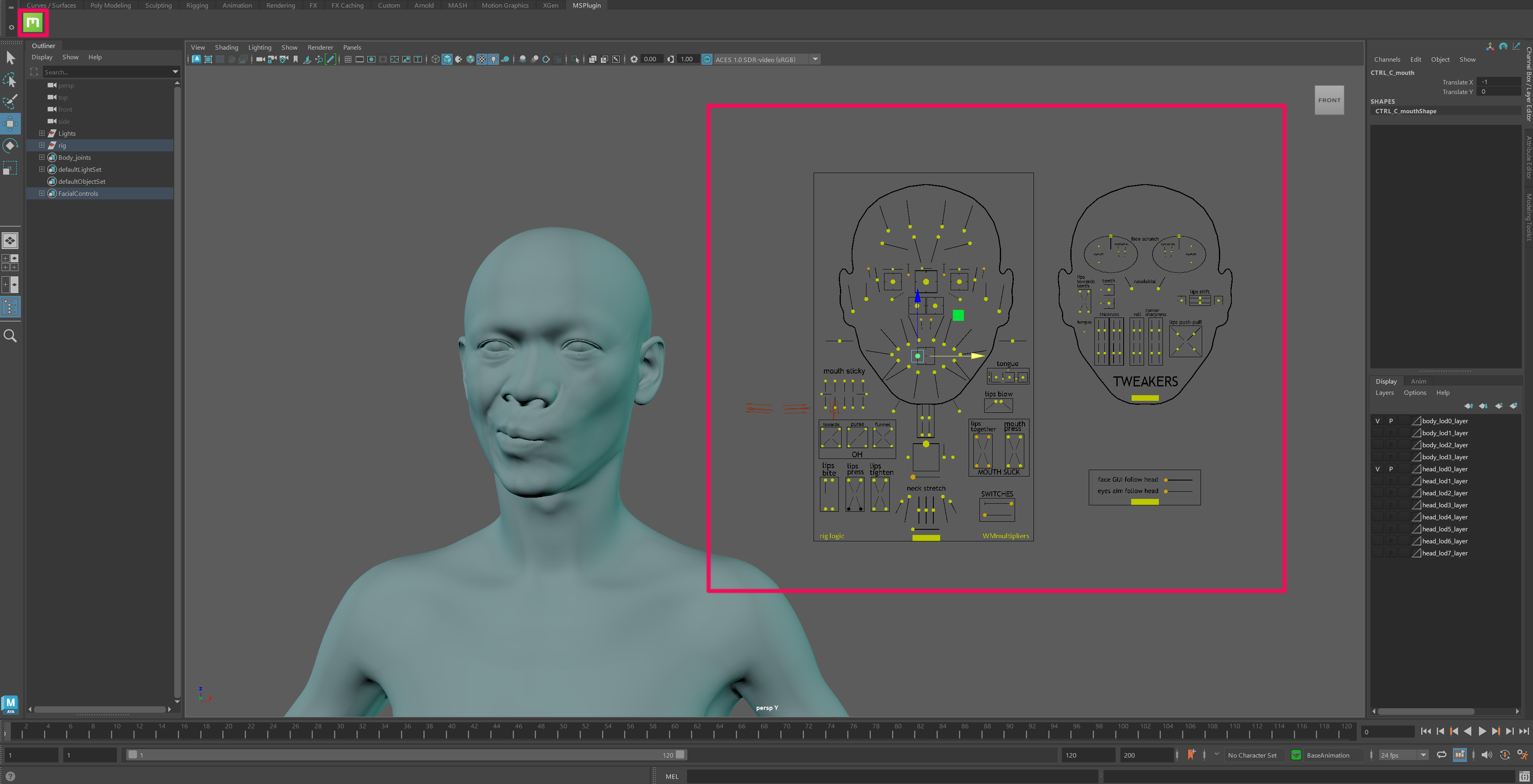
- The MetaHuman character appears in the Maya scene.
- The MetaHuman controller panel appears on the side.
If both appear correctly, the export process was successful. It is recommended to open a new scene to verify that everything loads properly.