01. Overview
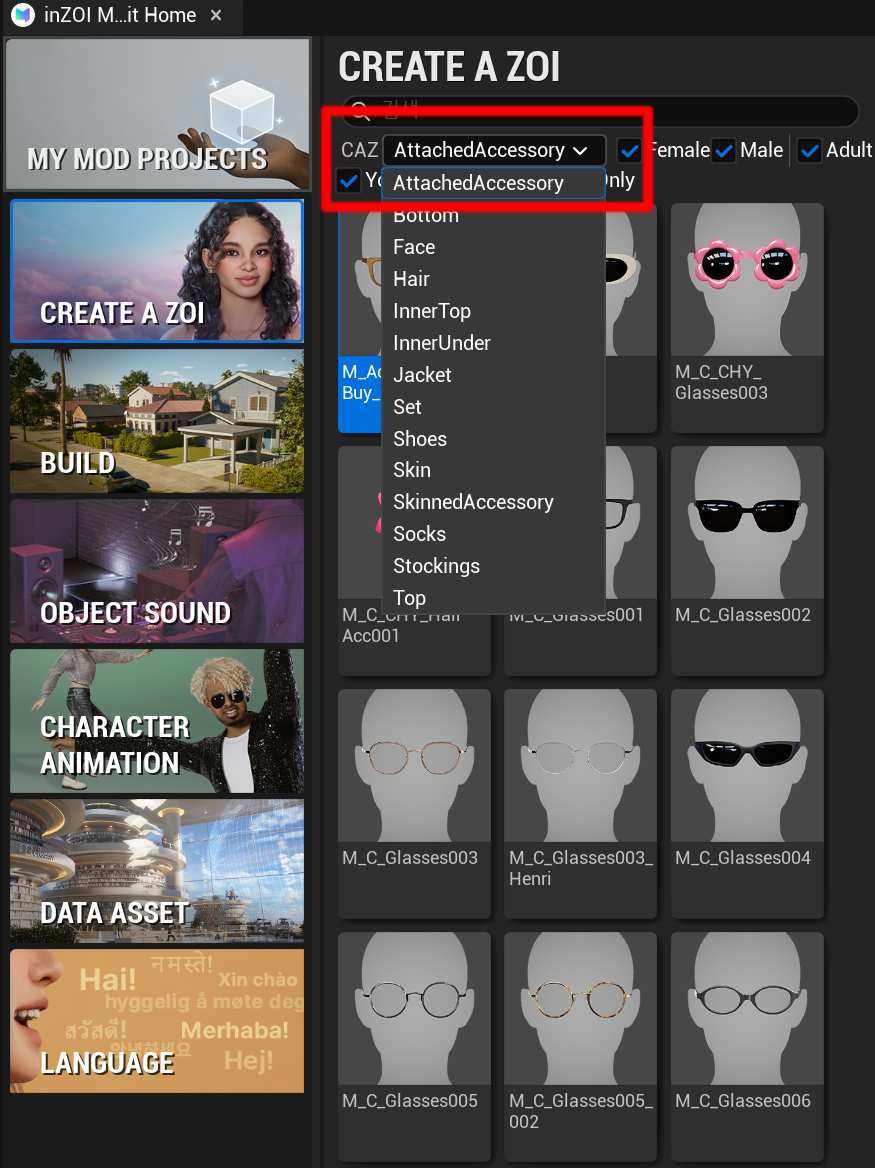
First, select the following item in the ModKit.
- Click Character → AttachedAccessory
After selecting it, the AttachedAccessory configuration panel will open as shown below.
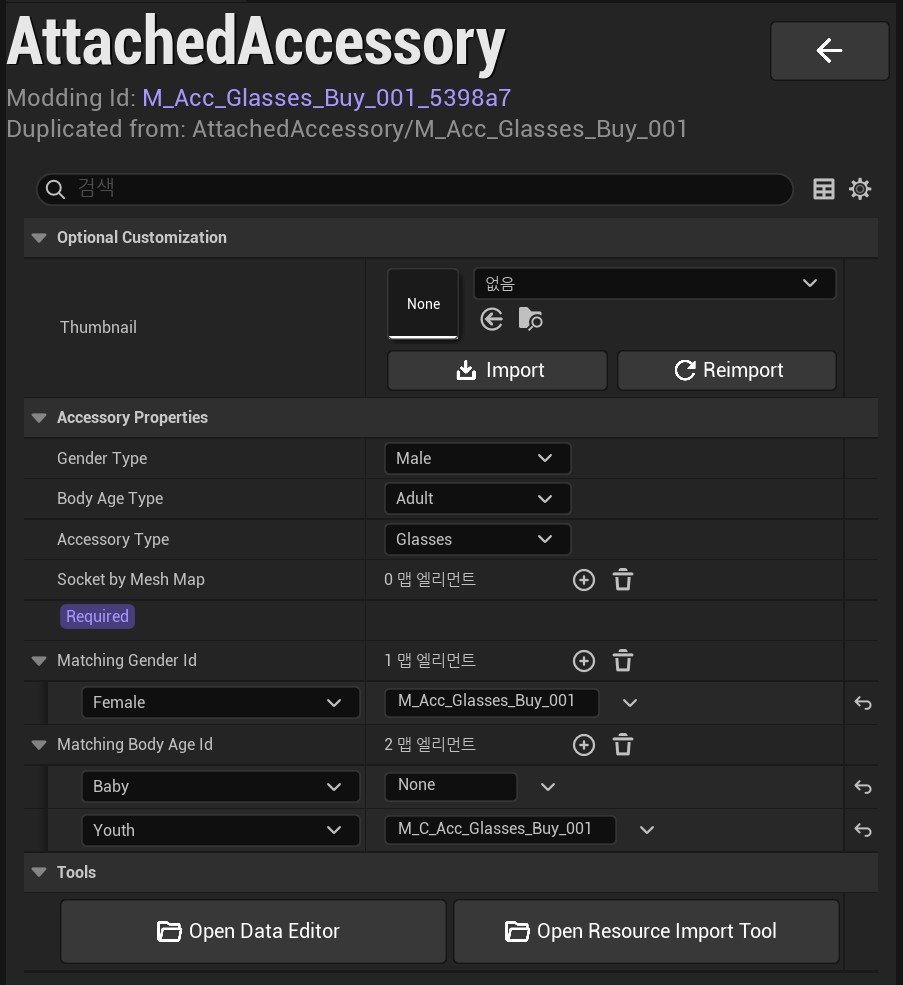
Optional Customization
- Thumbnail
- Registers the thumbnail image for the item
Accessory Properties
- Gender Type
- Defines which gender can use the item
-
Example:
Male,Female -
Body Age Type
- Defines the age group for the item
-
Example:
Adult,Child -
Accessory Type
- Selects the accessory category
Types:
Glasses: GlassesEarring: EarringsHairAccessory: Hair accessoriesPiercing: PiercingsCraftingMaterial: Processed gem (content-related)
Socket by Mesh Map
- Connects static mesh assets to specific socket positions
- Click the
+button to add entries
Socket Positions
- Head
-
Top of the head (used for hair accessories)
-
Nose Upper
-
Nose bridge (used for glasses – Adult Female / Children)
-
Glasses
-
Nose bridge (used for glasses – Adult Male)
-
L Ear 4 / R Ear 4
-
Lower ear (used for earrings)
-
L Ear 3 / R Ear 3
-
Middle ear (used for earrings)
-
L Ear 2 / R Ear 2
-
Upper ear (used for earrings)
-
Facial Root
-
Center of the face (used for hair accessories)
-
L Forehead Out / R Forehead Out
-
Eyebrow (used for eyebrow piercings)
-
Nostril
-
Nose (used for nose piercings)
-
Lip Lower
- Lip (used for lip piercings)
Matching Gender Id
- Defines which item ID is displayed when the gender is changed in CAZ
Matching Body Age Id
- Defines which item ID is displayed when the age group is changed in CAZ
Tools
- Open Data Editor
-
Opens the data editor for advanced configuration
-
Open Resource Import Tool
- Opens the resource import tool
Tip
Make sure to select the correct socket based on the accessory type.
Incorrect socket selection may result in misaligned or improperly attached items in-game.