Scripting
This page is about app.js: what you can do, how the game talks to
your code, and how your code talks back to the game.
If you are brand new to UIs, do the Hello inZOI walkthrough first — it gets you a working panel in five short edits. The reference sections after it explain why each piece works.
01. Walkthrough — "Hello inZOI" in five steps
You will end up with a small panel that opens on F1, asks the game what time it is, and prints the result.
Step 1 — Create the app
In ModKit, add a new UI app called hello_inzoi. ModKit creates a
folder with four starter files. Open them in the Inline Editor or
your external editor.
Step 2 — Set the trigger in the manifest
Replace the contents of uimod_manifest.json with:
{
    "name": "Hello inZOI",
    "entry": "index.html",
    "display": {
        "width": 1920,
        "height": 1080,
        "transparent": true,
        "input_policy": "overlay"
    },
    "triggers": [
        { "type": "keybind", "key": "F1" }
    ]
}
Click Save Manifest.
Step 3 — Lay out the page
Replace index.html:
<!DOCTYPE html>
<html>
<head>
    <meta charset="utf-8">
    <title>Hello inZOI</title>
    <link rel="stylesheet" href="styles.css">
    <script src="coui://inzoi/cohtml.js"></script>
    <script src="coui://inzoi/mod/inzoi-sdk.js"></script>
</head>
<body>
    <div id="panel">
        <h1>Hello, inZOI</h1>
        <p id="time">Press F1 to ask the game what time it is.</p>
    </div>
    <script src="app.js"></script>
</body>
</html>
Load
cohtml.jsbeforeinzoi-sdk.js. The first boots the engine binding, the second exposeswindow.inzoi. Skippingcohtml.jsis a common cause of the view never receiving clicks (see Troubleshooting).
Step 4 — Style it
Replace styles.css:
body { background: transparent; color: #fff; font-family: sans-serif; }
#panel {
    width: 360px;
    margin: 80px auto;
    padding: 24px;
    background: rgba(20, 20, 20, 0.85);
    border-radius: 8px;
}
h1 { margin: 0 0 12px; font-size: 24px; }
Step 5 — Write the script
Replace app.js:
(function () {
    const timeEl = document.getElementById("time");

    inzoi.trigger.onActivated(function (t) {
        if (t.type !== "keybind" || t.key !== "F1") return;

        inzoi.cli.execute("environment.get_time")
            .then(function (result) {
                timeEl.textContent = "Game time: " + JSON.stringify(result);
            })
            .catch(function (err) {
                timeEl.textContent = "Failed: " + err.message;
            });
    });

    console.log("[hello_inzoi] ready");
})();
Step 6 — Try it
- In the Trigger Simulator panel, click Fire next to the
keybindrow. The Preview should update to show the result. - In the JS Console, you should see
[info] [hello_inzoi] ready.
When you are happy, click Live Preview and press F1 in inZOI.
02. The trigger flow
Here is what happens between you clicking Fire in the simulator (or pressing F1 in the game) and your function running:
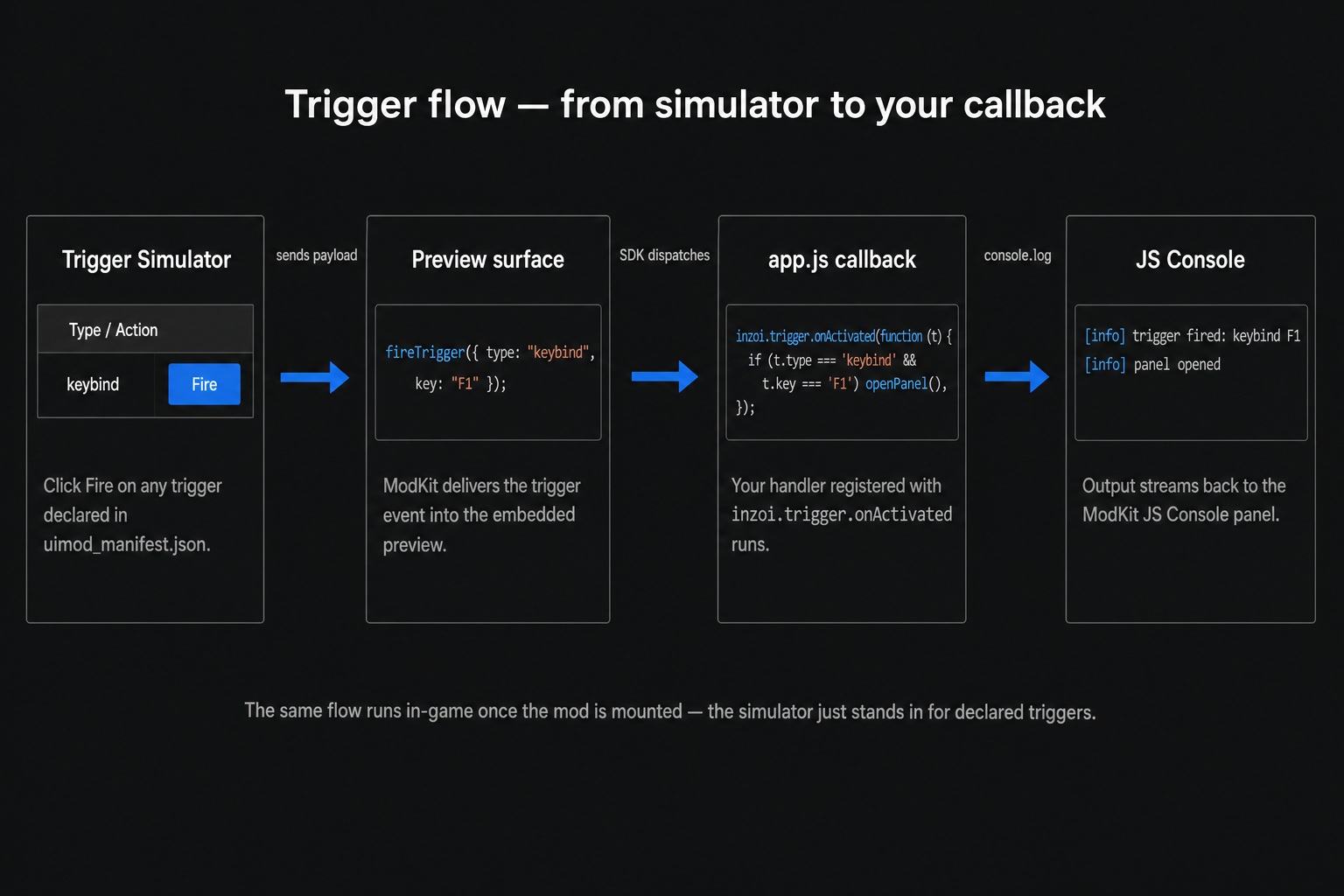
- The Trigger Simulator (or the running game) decides one of your
declared triggers has been satisfied and assembles a payload like
{ type: "keybind", key: "F1" }. - ModKit sends that payload into the Preview Surface (the embedded browser).
- The SDK dispatches it to every callback registered via
inzoi.trigger.onActivated. - Your callback runs. Anything you
console.logends up in the JS Console.
That is why the standard pattern is "register one callback, then
switch on t.type and t.key / t.command / ..." — your single
callback is the entry point for everything the game tells you.
Term: "callback"
A function you hand to someone else so they can call you later.
inzoi.trigger.onActivated(fn)is you saying: "Game, here is my phone number. Ring me whenever a trigger fires."
03. The window.inzoi SDK
The SDK is exposed as a single global inzoi (also window.inzoi).
It has these areas:
| Area | Purpose | Highlights |
|---|---|---|
inzoi.trigger |
React to UI triggers. | onActivated(cb) |
inzoi.cli |
Run game commands from JS. | execute(command, params?), list(category?), help(command?) |
inzoi.data |
Read game state. | query(domain, method, params?), subscribe(domain, params, cb), onPush(domain, cb) |
inzoi.event |
Fire UI/game events. | fire(eventName, params?) |
inzoi.view |
Control your panel. | show(), hide(), reload(), resize(w, h), hover(bool) |
inzoi.debug |
Logging without console. |
log(message), echo(message?) |
inzoi.types |
Enum-style string constants for inZOI domains (Emotion, Season, etc.). | constants only |
inzoi.config |
SDK-level config. | setTimeout(ms) |
Most calls return a Promise unless noted otherwise. Use .then()
/ .catch() or async/await.
03-1. Triggers (inzoi.trigger)
inzoi.trigger.onActivated(function (t) {
    // t.type is always present.
    // Extra fields depend on the trigger type. See "Files".
});
Most apps use one callback and branch by trigger type:
inzoi.trigger.onActivated(function (t) {
    if (t.type === "keybind" && t.key === "F1") {
        togglePanel();
        return;
    }

    if (t.type === "command" && t.command === "mood_panel.toggle") {
        togglePanel();
        return;
    }

    if (t.type === "game_event" && t.event === "zoi.mood_changed") {
        refreshMood();
        return;
    }
});
Buttons inside your panel are normal DOM buttons. They do not need a
manifest trigger; wire them with addEventListener:
document.getElementById("close").addEventListener("click", function () {
    inzoi.view.hide();
});

document.getElementById("refresh").addEventListener("click", function () {
    refreshMood();
});
So the split is:
- Manifest triggers decide when the panel appears or receives an external event.
- DOM button handlers decide what happens after the player clicks inside your panel.
03-2. Game commands (inzoi.cli)
The full command catalog is published at API Catalog.
// Fire-and-forget: change the current Zoi's mood.
inzoi.cli.execute("zoi.setMood", { mood: "happy" });

// With result handling: ask the game for the in-game time.
inzoi.cli.execute("environment.get_time")
    .then(function (result) { console.log("now", result); })
    .catch(function (err)   { console.warn("failed", err); });

// List every command in a category.
inzoi.cli.list("zoi").then(function (commands) { console.log(commands); });
03-3. Game state (inzoi.data)
// One-shot query.
inzoi.data.query("zoi", "getCurrent")
    .then(function (zoi) { console.log("current zoi", zoi); });

// Live subscription. Returns an object with .unsubscribe().
const sub = inzoi.data.subscribe("zoi", { id: "self" }, function (state) {
    console.log("zoi state changed", state);
});

// Stop listening:
sub.unsubscribe();
03-4. Your panel (inzoi.view)
inzoi.view.hide();             // close the panel
inzoi.view.show();             // open it again
inzoi.view.reload();           // re-run index.html
inzoi.view.resize(800, 600);   // logical pixels
inzoi.view.hover(true);        // tell the game we want clicks now
For interactive panels, use input_policy: "overlay" and call
inzoi.view.hover(true) on mouseenter, then inzoi.view.hover(false)
on mouseleave. This tells the game when the cursor is over your panel
so clicks should go to the UI instead of the world.
04. A real example — mood_panel
This is the actual app.js from the shipped Mood Panel sample.
It demonstrates four of the patterns above: DOM events, inzoi.cli,
inzoi.view.hover, and console.log.
(function () {
    const currentEl = document.getElementById("current");

    function setMood(mood) {
        currentEl.textContent = mood;

        if (window.inzoi && window.inzoi.cli) {
            window.inzoi.cli.execute("zoi.setMood", { mood: mood })
                .then(function (result) {
                    console.log("[mood_panel] zoi.setMood ok:", result);
                })
                .catch(function (err) {
                    console.warn("[mood_panel] zoi.setMood failed:", err);
                });
        }
    }

    document.querySelectorAll("button[data-mood]").forEach(function (btn) {
        btn.addEventListener("click", function () {
            setMood(btn.getAttribute("data-mood"));
        });
    });

    // Capture pointer so the game knows we are interactive.
    const panel = document.getElementById("panel");
    panel.addEventListener("mouseenter", function () { window.inzoi && window.inzoi.view.hover(true); });
    panel.addEventListener("mouseleave", function () { window.inzoi && window.inzoi.view.hover(false); });

    console.log("[mood_panel] ready");
})();
The matching uimod_manifest.json (also shipped) opens this panel on
Ctrl+M or on the chat command mood_panel.toggle. The combination
is a complete, runnable UI in under 40 lines of script.
05. Troubleshooting 
| Symptom | Likely cause | Fix |
|---|---|---|
| UI is visible but completely ignores clicks/drags in-game | coui://inzoi/cohtml.js is missing from index.html. Without it, cohtml never fires the view's ready callbacks and the view stays in Loading state forever. |
Add <script src="coui://inzoi/cohtml.js"></script> before inzoi-sdk.js in <head>. |
window.inzoi missing — preview fallback active shows in-game |
Same as above — engine binding did not boot, so window.inzoi was never injected. |
Same fix as above. |
| Nothing happens when I press my keybind | keybind not declared in uimod_manifest.json, or t.key does not match what you wrote. |
Check the manifest, and console.log(t) inside onActivated to see what the game actually sends. |
inzoi.cli.execute(...) rejects with "unknown command" |
Command name typo, or the command lives in a different category. | Look it up in the API Catalog. |
| My buttons receive clicks but the panel still steals input from the game | input_policy is overlay but you never tell the engine when the cursor leaves the panel. |
Call inzoi.view.hover(true) on mouseenter and inzoi.view.hover(false) on mouseleave of your panel root. |
Buttons don't receive clicks with input_policy: "passthrough" |
passthrough is for passive display-only HUDs. |
Switch the manifest to input_policy: "overlay" for buttons, drag handles, sliders, or scroll areas. |
| Drag handler fires once on press but doesn't follow the cursor | pointerdown/pointermove/setPointerCapture are unreliable inside the in-game cohtml view. |
Use mousedown on the handle, then mousemove/mouseup on document (so the drag survives the cursor leaving the handle). |
| The whole page becomes click-through | Someone set pointer-events: none on html or body. |
Don't. Set pointer-events: none only on specific decorative children (e.g. .signboard-text) and rely on inzoi.view.hover(over) to manage game input. |
| Preview is blank | Bad HTML or a syntax error in app.js. |
Check the JS Console — errors show up there. |
| Changes are not reflected in-game | You forgot to Live Preview after saving. | Click Live Preview. |