Workspace
The workspace is where you actually build a UI. It bundles a file tree, a live preview, an editor, a manifest form, and a way to test triggers — so you can change a file, see the result, and even fire events at your script without ever launching the game.
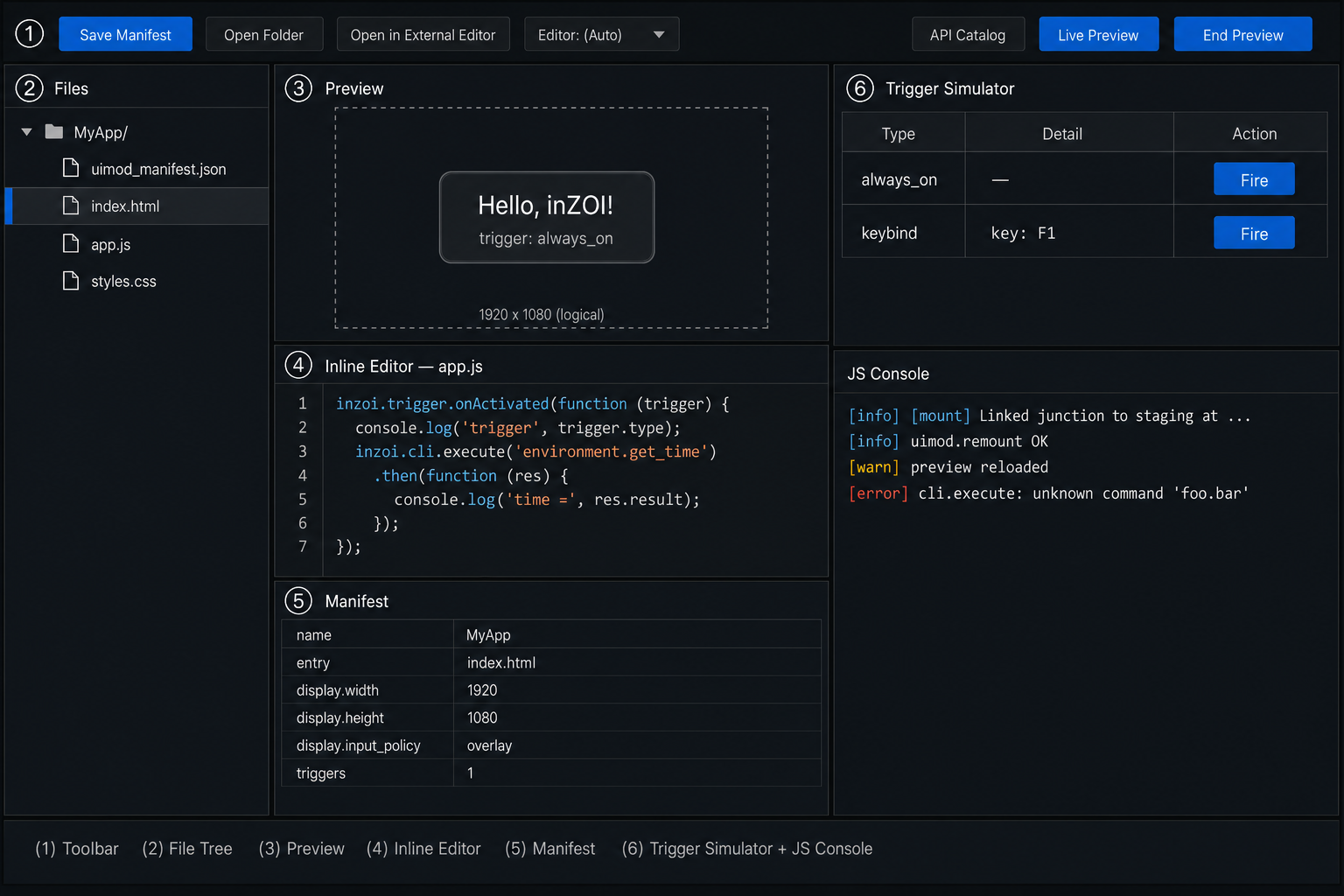
01. The toolbar
Across the top of the workspace.
| Button | What it does | When you reach for it |
|---|---|---|
| Save Manifest | Writes the current manifest form back to uimod_manifest.json. The preview also reloads. | After tweaking fields in the Manifest panel. |
| Open Folder | Opens the mod's ui/ folder in your OS file explorer. | When you want to use Git, drop in assets, or share the folder. |
| Open in External Editor | Opens the mod folder in whichever editor you picked from the dropdown next to this button (VS Code, Sublime, etc.). | For real coding work — the inline editor is for quick edits only. |
| Editor: (Auto) | Picks which external editor opens. Auto finds the first one installed on your system. | One-time setup. |
| API Catalog | Opens the CLI command reference in your browser. | Any time you forget what a command is called or what parameters it takes. |
| Live Preview | Copies your ui/ folder into Documents/inZOI/Mods/ModKitPreview/<mod_id>/ (kept apart from your installed mods), then asks the running game to (re)load the mod. Safe to press repeatedly while iterating. | When you want to see your mod inside inZOI instead of just the preview. |
| End Preview | Tells the game to unload this mod and deletes its ModKitPreview/<mod_id>/ folder. | When you are done iterating. Closing the workspace also runs this automatically; closing the editor deletes the folder. |
02. (2) File Tree
A list of every app folder under your mod's ui/, with the files
inside each one. Click a file to open it in the Inline Editor to
the right.
What it shows you:
- Which app is currently active for the Preview and Manifest panels.
- The exact filenames you would see in your file explorer — no abstraction over the real folder structure.
You do not need to use this panel to edit files — you can also open the folder in your external editor and work from there. ModKit watches the folder either way.
03. (3) Preview
A live in-editor browser, running the same UI engine the game uses. It
renders your index.html exactly as the game will.
- It reloads automatically when you save a file.
console.logand friends go to the JS Console panel, not your browser's devtools.- The dotted boundary represents the 1920x1080 logical canvas. Lay your CSS out against that size.
Term: "logical canvas"
The game always thinks your UI is 1920x1080, regardless of the player's monitor. The game UI engine then scales the whole thing to the real screen for you. If something looks tiny at 4K, that's expected — design for 1920x1080.
04. (4) Inline Editor
A built-in text editor for the file you selected in the tree.
This is for quick edits — a typo, a one-line tweak, a CSS color change. For anything bigger:
- Pick your editor in the toolbar dropdown.
- Click Open in External Editor.
- Edit there — ModKit will pick up the changes.
05. (5) Manifest
A form view of uimod_manifest.json for the currently selected app.
Edit fields here, click Save Manifest, and ModKit writes them back
to the JSON file.
You can also edit uimod_manifest.json directly in any editor — both
views stay in sync.
The fields you see in this panel match the manifest schema described on the Files page.
06. (6) Trigger Simulator and JS Console
Both panels live in the right-hand column.
06-1. Trigger Simulator
A small table with one row per trigger declared in your manifest. Each row has a Fire button.
When you click Fire, ModKit pretends the game just satisfied that trigger:
keybind→ fires as if the player pressed that key.command→ fires as if the player typed the command.game_mode→ fires only when it matches the preview's current mode.game_event→ fires as if the game emitted that event.ui_event→ fires as if another UI emitted that event.interaction_menu→ fires as if the menu item was selected.always_on→ fires once on demand (in practice,always_onis already active and you rarely need to simulate it).
The simulator follows the game-like preview rules. For example, a
game_mode trigger for Vehicle will not show the panel while the
preview mode is TopView; the JS Console logs a warning instead. This
helps catch "it appears in ModKit but not in game" mistakes before Live
Preview.
This is how you iterate without launching inZOI: declare the trigger in
the manifest, click Fire, then watch your
inzoi.trigger.onActivated(...) callback and JS Console output.
06-2. JS Console
Anything your script writes via console.log, console.warn,
console.error, or inzoi.debug.log shows up here, color-coded by
severity.
If your panel does not behave the way you expect, this is the first place to look.
07. Live Preview
The Live Preview button is what takes your work-in-progress out of the editor and into the running game. Think of it as a hot-reload — not an install.
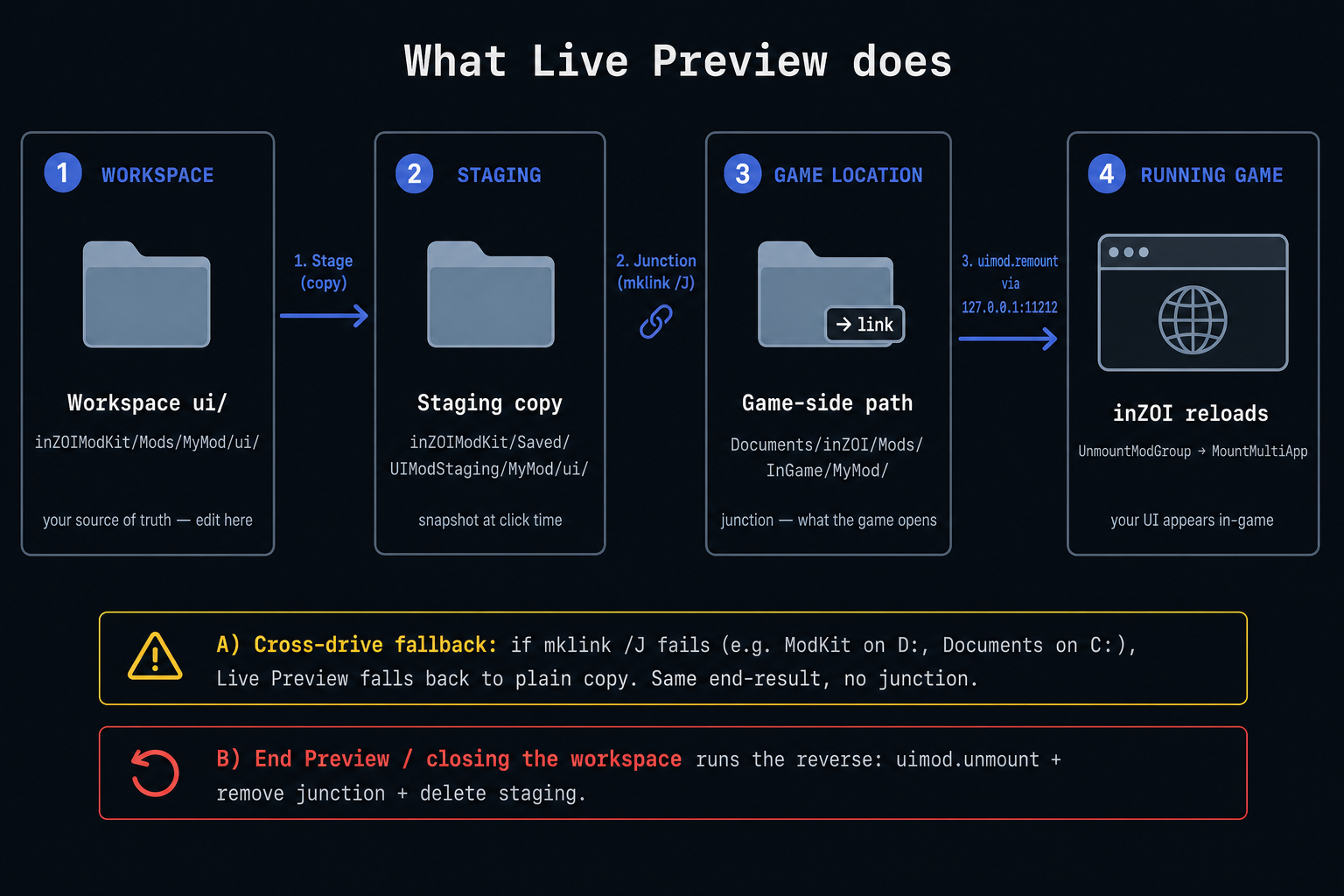
What it actually does, step by step:
- Unloads the previous preview if one is already in place. The game
is asked to
uimod.unmountthe mod first so it lets go of the files it has open. - Copies every file under your mod's
ui/folder intoDocuments/inZOI/Mods/ModKitPreview/<mod_id>/ui/, together with themod_manifest.jsonand.upluginthe game scans for. This folder is kept apart fromMods/InGame/, so the mods you have installed are never touched. - Sends a remount request to the running game over a local
connection (
http://127.0.0.1:11212). The game re-mounts the mod from the freshly copied folder. - Confirms with a dialog. The JS Console also gets
[info] [mount]lines showing how many files were copied and whether the game accepted the remount.
Game not running?
The copy still succeeds. The remount call fails, and the next time you launch the game, the new files will be picked up automatically.
You can press Live Preview as often as you want — each call replaces the copy with a fresh one.
Ending the preview
- End Preview button. Asks for confirmation, calls
uimod.unmounton the game so the in-game UI disappears cleanly, then deletes theModKitPreview/<mod_id>/folder. - Closing the workspace tab. Same cleanup, run automatically and without prompting. Live Preview is an iteration affordance, not a persistent install, so it does not survive past the workspace that started it.
- Closing the editor. The preview folder is deleted, but the game is not told to unload the mod, so a preview that is already loaded stays in the running game until it restarts.
If ModKit ever crashes before it can clean up, delete
Documents/inZOI/Mods/ModKitPreview/<mod_id>/ by hand.