UI
01. What is a UI?
A UI is a small web app (HTML + CSS + JavaScript) that ModKit loads on top of inZOI. It is exactly like a webpage, except its "browser" is the running game and it can talk to the game through a built-in JavaScript SDK.
If you have ever written a webpage, you already know most of what a UI needs. The new parts are:
- A manifest — a tiny JSON file that tells the game when your panel should appear and how it should behave (size, transparency, input).
- A trigger — the condition that wakes your panel up (always on, a keybind, a chat command, etc.).
- The
inzoiSDK — a global object available in your scripts that lets you call game commands and read game state.
Mental model
Your UI is a webpage. The manifest decides when it opens. Your
app.jsreacts to the game and asks the game to do things.
02. What you can build
A UI is best for small, focused panels that read or change game
state. Real examples shipped in inZOIModKit/Mods:
| Mod | What it does | Trigger | Key SDK calls |
|---|---|---|---|
| Clock Widget | A transparent on-screen clock that ticks while you play. | always_on | (none — pure DOM) |
| Mood Panel | A small panel with buttons that change the current Zoi's mood. | keybind: key "M" + modifiers ["Ctrl"] and command: mood_panel.toggle | inzoi.cli.execute('zoi.setMood', { mood }) |
| Event Toast | Pops a toast when a specific game event fires. | game_event: ... | listens to triggers, no game writes |
| Tools Demo | A developer dashboard that demonstrates most SDK surfaces at once. | multiple | inzoi.data.query, inzoi.cli.list, ... |
You do not need a UI for things the base game already handles: new clothing or hair belongs in CAZ, new placeable objects belong in Build, balance tweaks belong in DataAsset. UIs sit on top of those — they are the windows and buttons layer.
03. The ModKit workspace
When you open a UI project in ModKit, you get this six-panel layout:
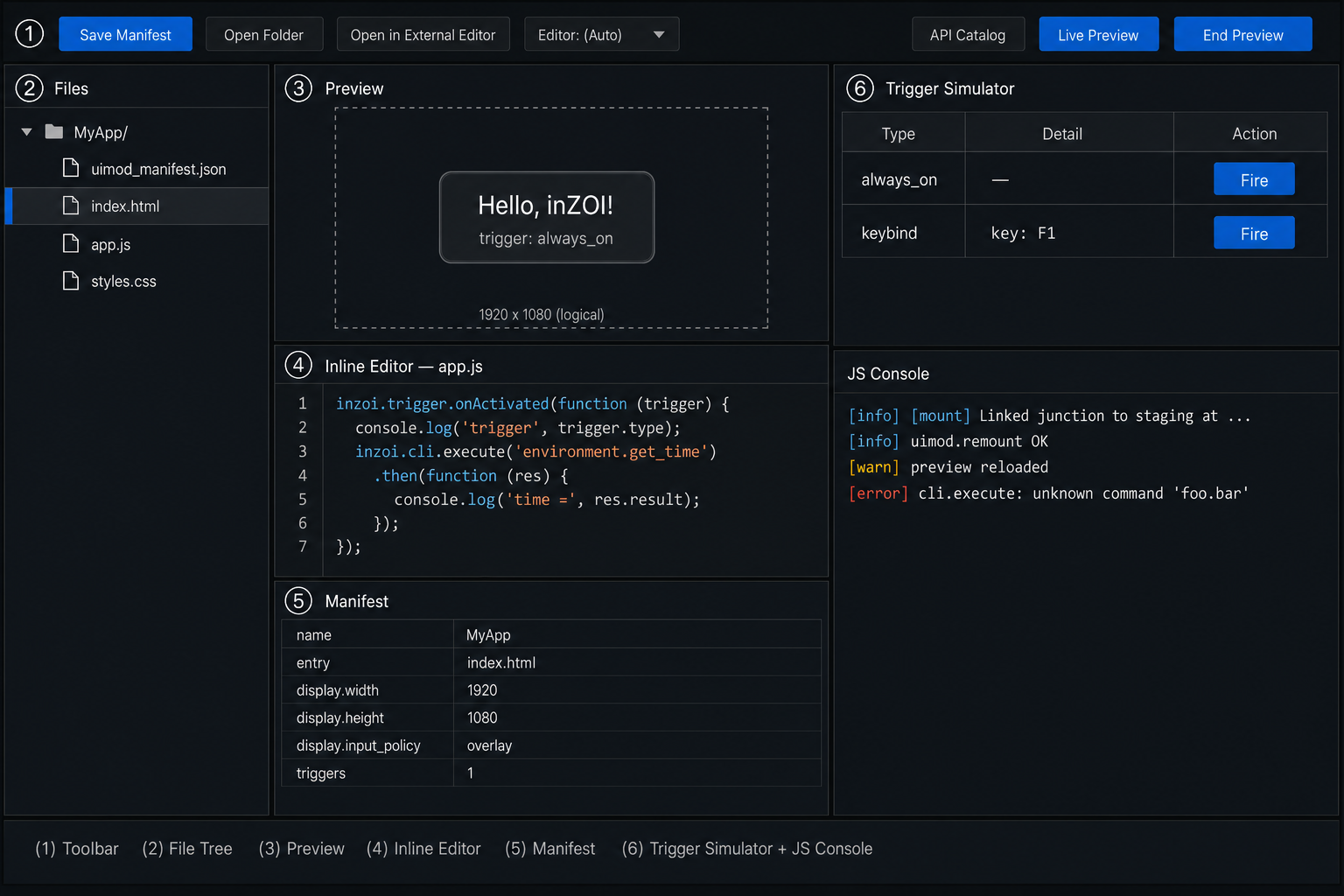
| # | Panel | What it is for |
|---|---|---|
| 1 | Toolbar | Save the manifest, open the mod folder, open files in your editor of choice, view the CLI catalog, or push the mod into a running game. |
| 2 | File Tree | The files that make up the currently selected app (uimod_manifest.json, index.html, app.js, styles.css). |
| 3 | Preview | A live in-editor browser that renders your HTML. Reloads when you save. |
| 4 | Inline Editor | A built-in text editor for quick tweaks. For real work, use an external editor (set it from the toolbar). |
| 5 | Manifest | A form view of uimod_manifest.json. Edit here or in the file — they stay in sync. |
| 6 | Trigger Simulator + JS Console | Fire any trigger declared in the manifest without launching the game, and read your console.log output. |
The next pages walk through each of these in detail.
04. Where to go next
- Files — what
uimod_manifest.json,index.html,app.js, andstyles.cssare each for, and the full manifest schema. - Workspace — how to use each panel of the editor, and what Live Preview does under the hood.
- Scripting — a step-by-step "Hello inZOI" walkthrough, the trigger flow, and the SDK reference.
If you just want a reference of every game command you can call from your scripts, jump straight to the CLI Catalog.