07.DataEditor
Purpose
In this step, we'll use ModKit's Data Editor to edit the hair's detailed data in more detail, and configure the hair in the customization menu to accurately display the intended information.
This procedure is an additional setting step after basic hair creation, and it involves linking materials, meshes, and customization options (two-tone, Highlight Color, cut, etc.) to the data structure.
Composition Summary
| data table | role |
|---|---|
| AppearanceHairMesh.json | Register information about the actual hair resources (FBX, material, skeleton, hat correspondence, etc.) |
| AppearanceHair.json | Registering hair items displayed in the customizing UI (thumbnail, PartsId, subcategory, etc.) |
| AppearanceParts.json | PartsId Define a set of customizing features that are activated according to (two-tone, cut, Highlight Color, etc.) |
Step-by-step detailed editing process
1. AppearanceHairMesh.j
- Running the Open Data Editor
AppearanceHairMesh.jsonSelect tab- Check the hair ID you are currently working on
- Check and correct the following items:
| item | explanation |
|---|---|
| Id | Hair Unique ID (Gender + Style combination) |
| Thumbnail | Preset icon image |
| Mesh | Imported Skeletal Mesh ( SKM_AssetName ) |
| Materials | Connected Material Instance ( MI_AssetName ) |
| GroupId | Bundle ID of hair presets of the same series |
| HatTypeMesh | Replacement mesh settings for each hat type |
| bEnableHairCutHeight | Whether the cut function is activated when wearing a hood |
| MatchingGenderId / MatchingBodyAgeId | Matching Hair ID by Gender/Age Group |
⚙️
This table manages the actual resource structure. If the input is incorrect, the customization items will be displayed, but the mesh will not load.
List of hat types used in inZOI
| HatType ID | Reference image | Details |
|---|---|---|
| Default | 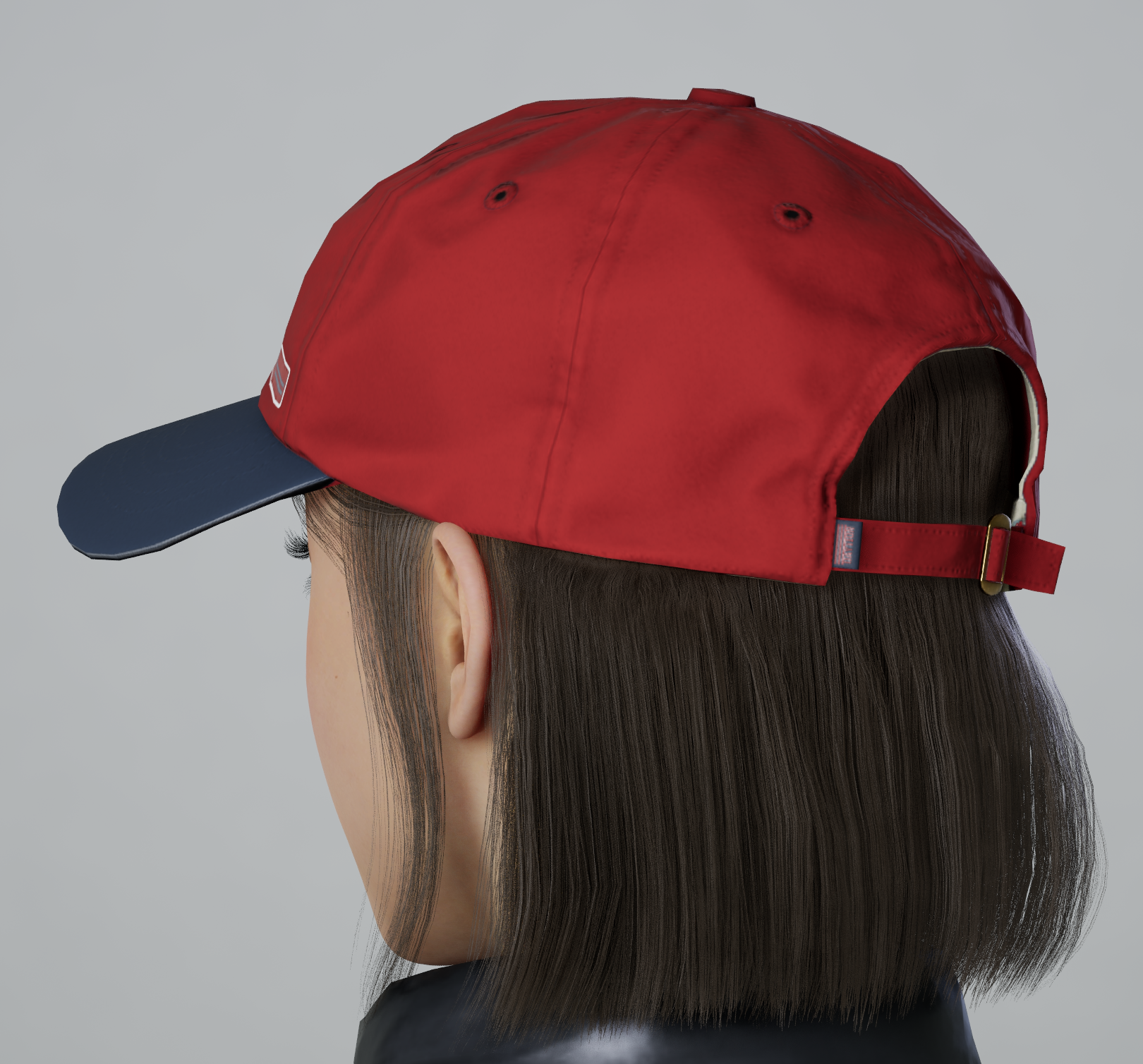 |
Basically, the hat type can be applied as Default.
Additional Beanie/Fedora types may be required depending on your hairstyle.
|
| Beanie | 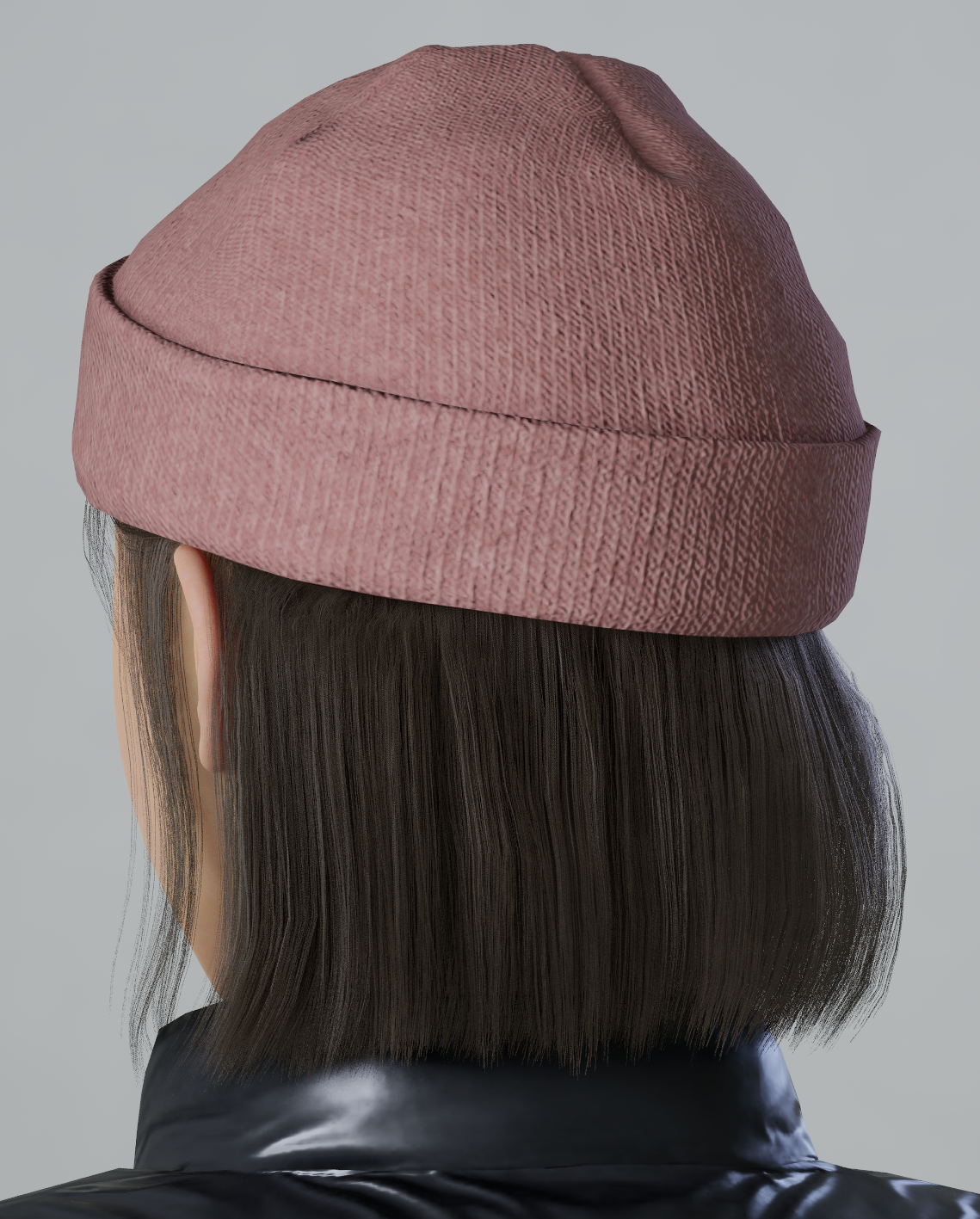 |
|
| Fedora | 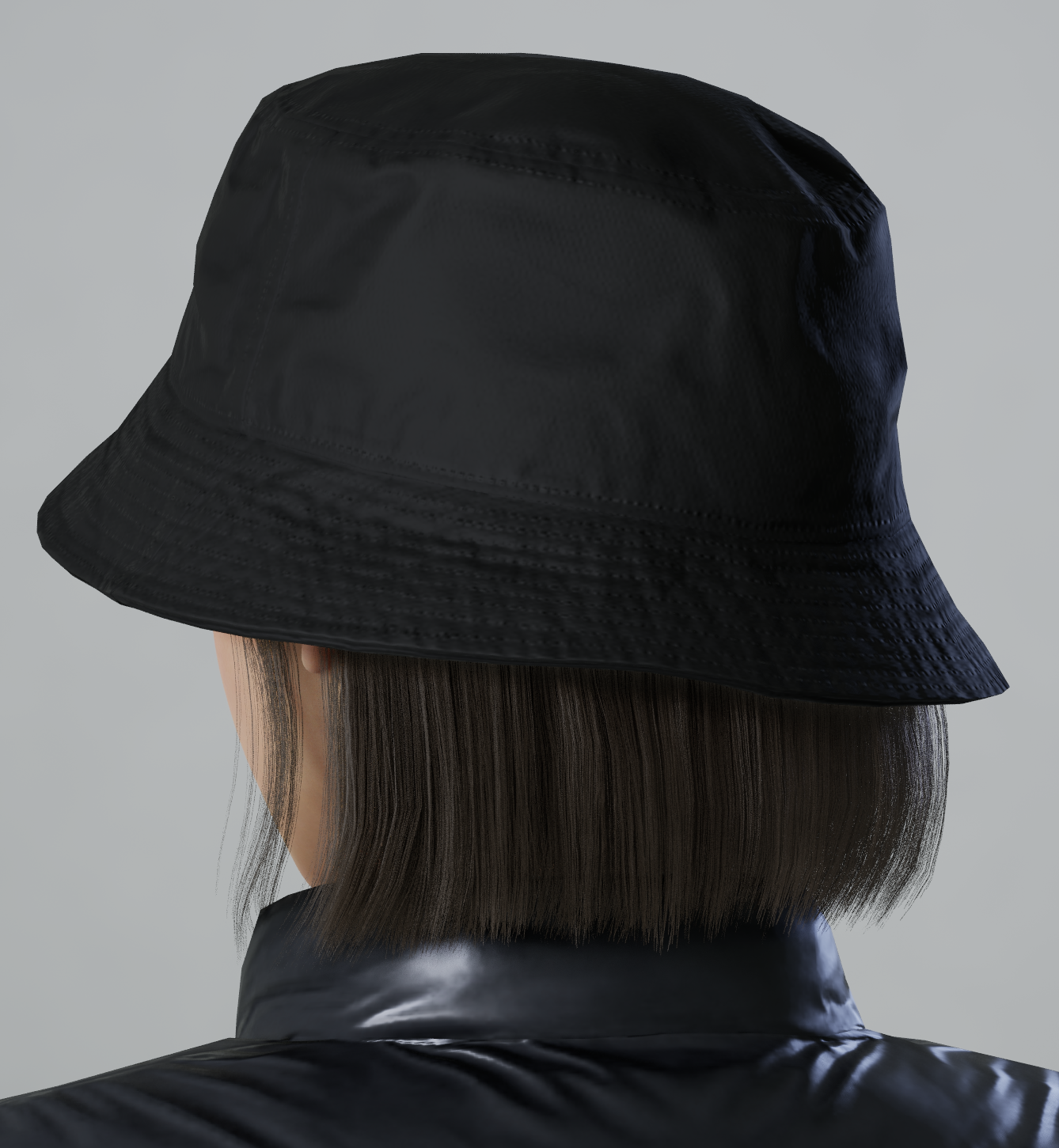 |
|
| Durag | 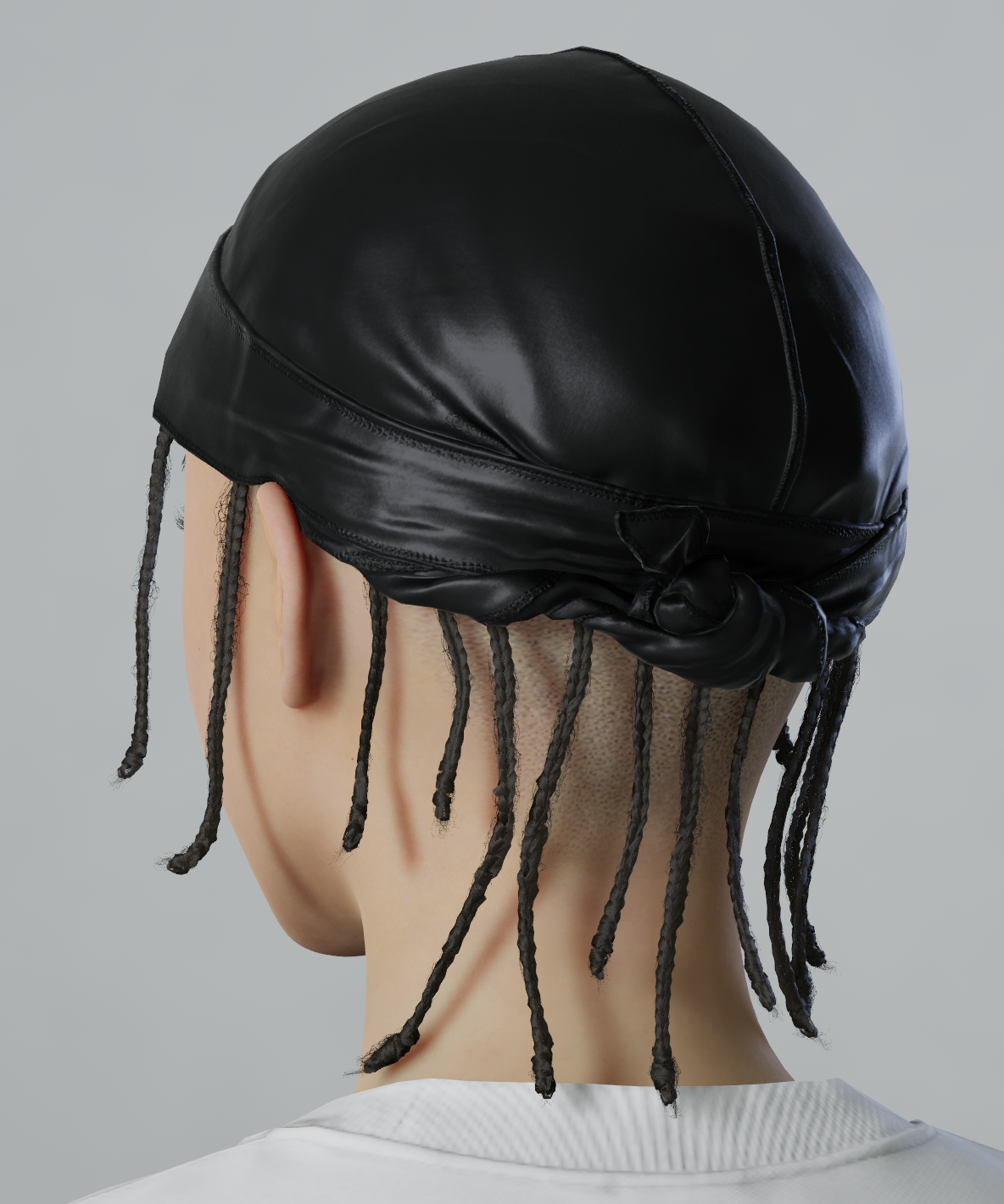 |
When wearing a durag type hat, it is recommended to change the hair to a bald type.
SKM_Male_Hair_Bald_001
|
| Helmet | 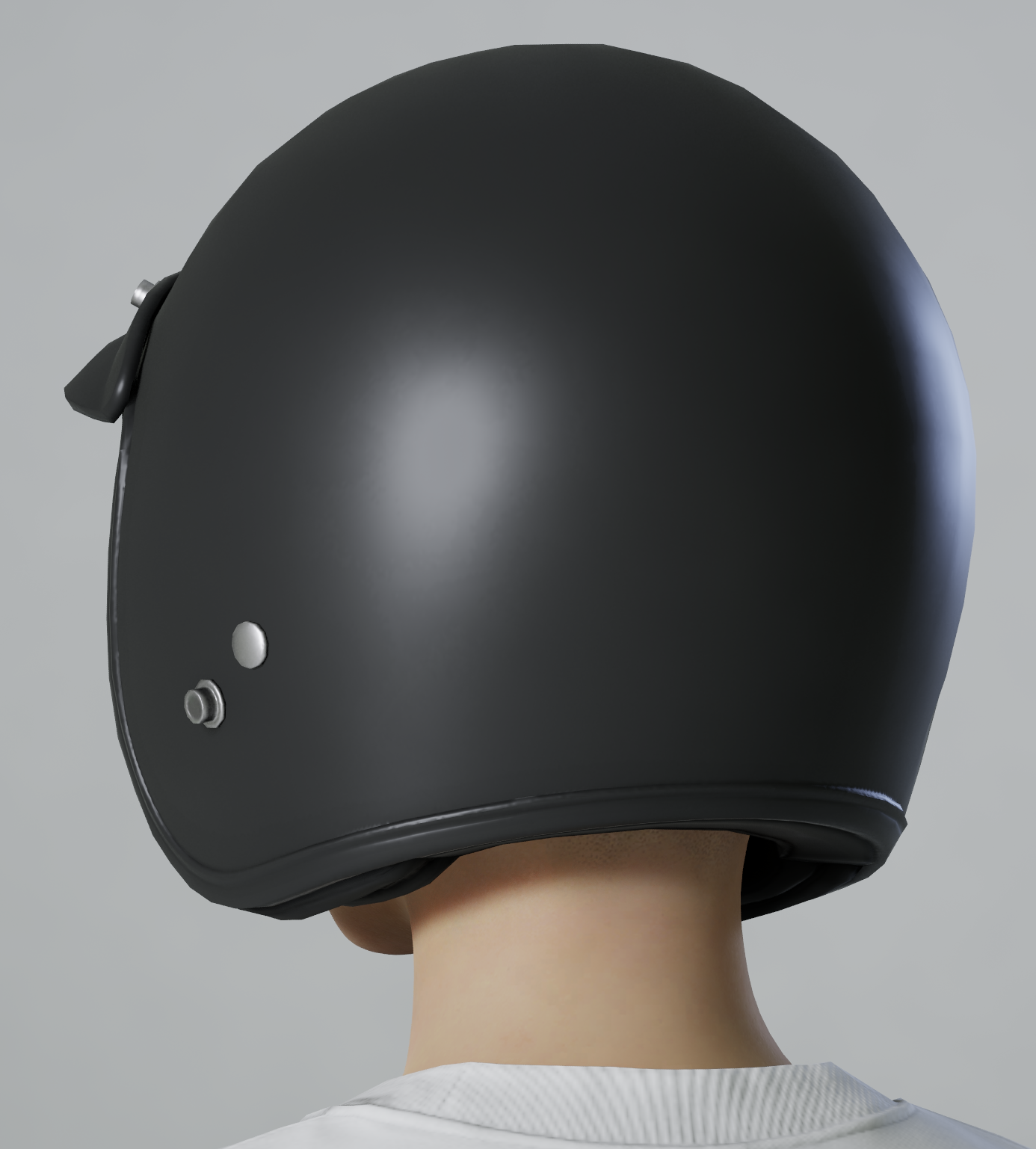 |
When wearing a helmet type hat, it is recommended to replace the hair with a bald type.
SKM_Male_Hair1Bald_001
|
| HairMesh | Hat version HairMesh |
|---|---|
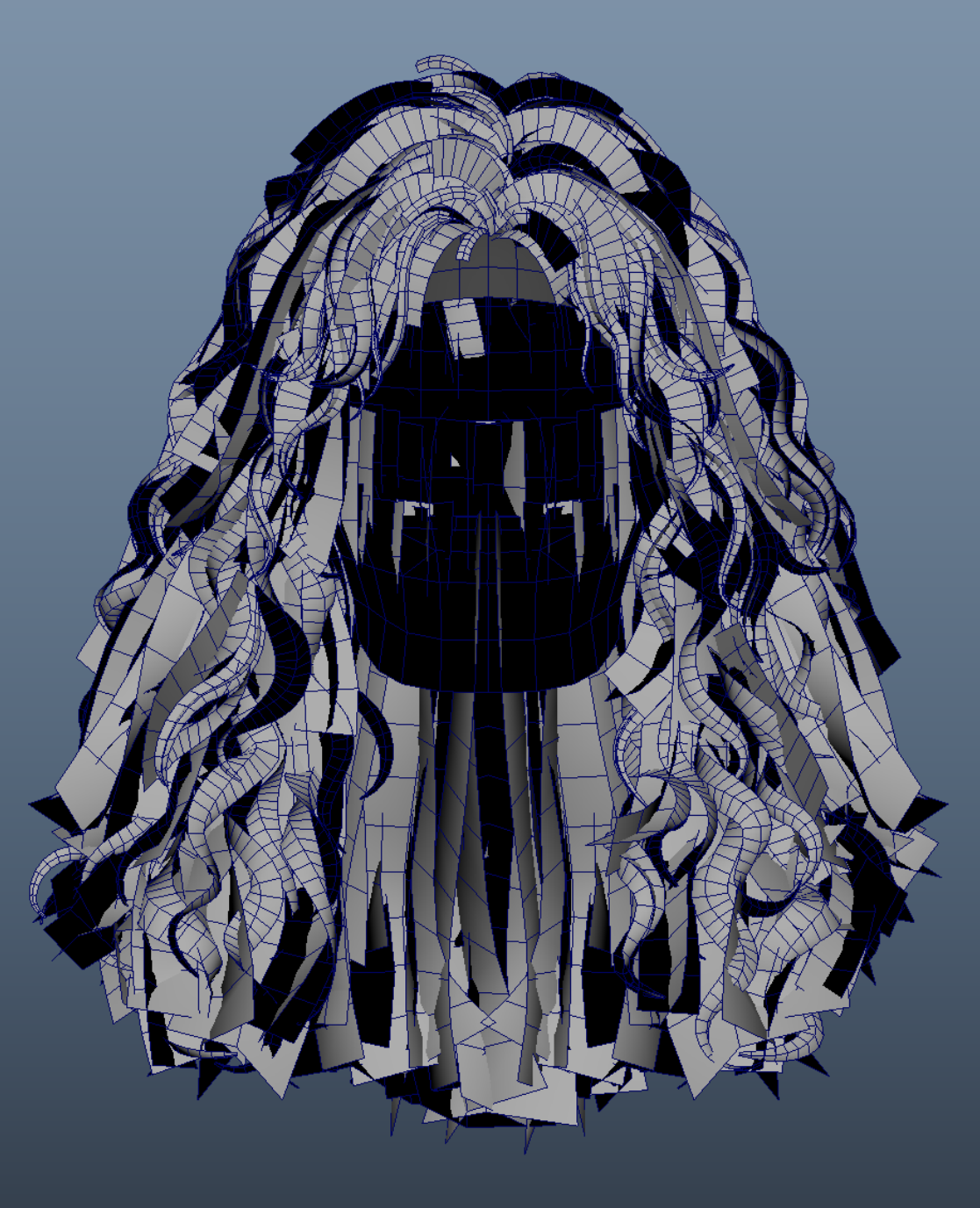 |
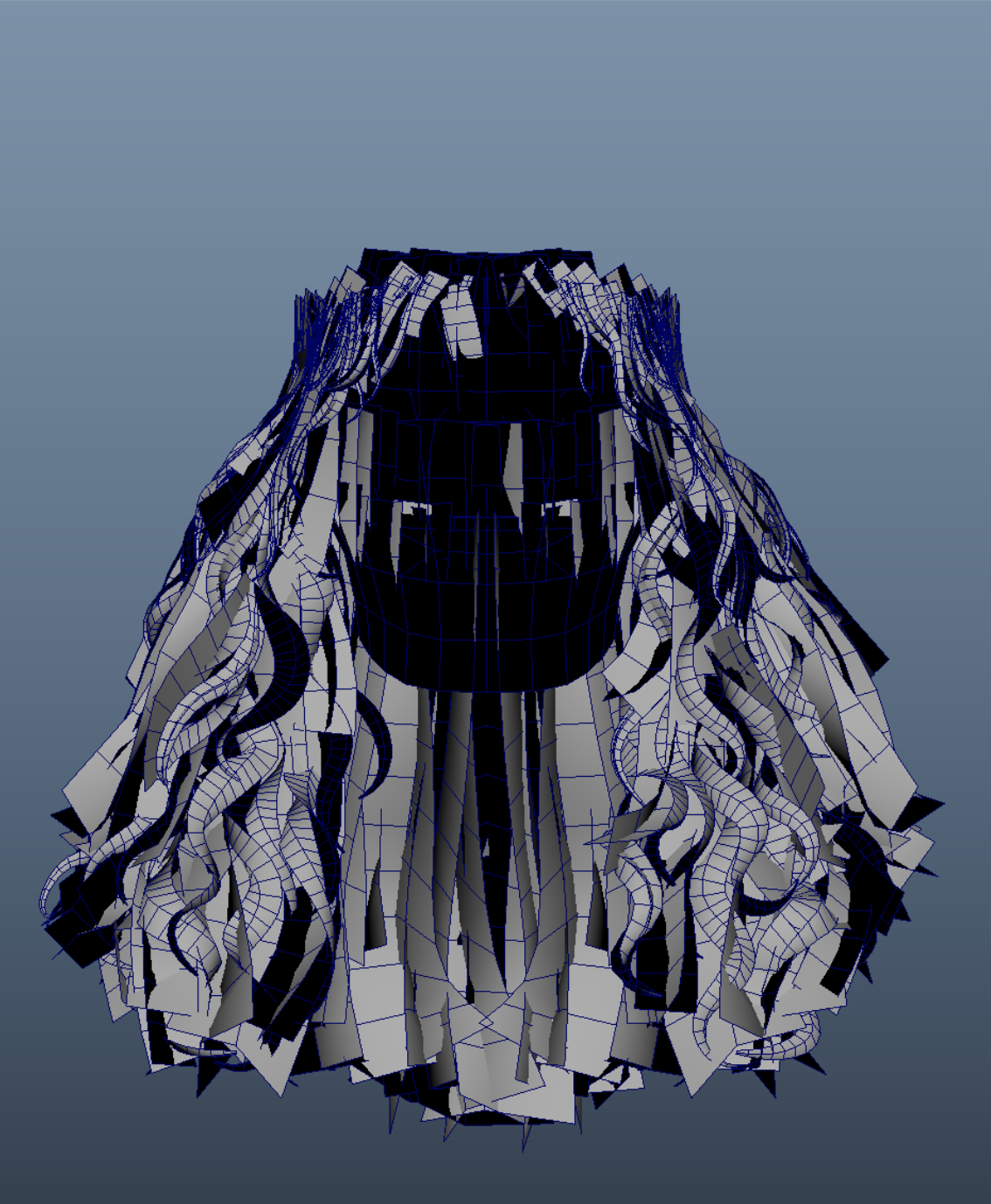 |
2. Register AppearanceHair.json
AppearanceHair.jsonSelect tab- Add items for UI display
- Enter the following fields
| item | explanation |
|---|---|
| Id | Hair Unique ID (Gender + Style combination) ID identical to the Group ID specified in AppearanceHairMesh |
| Thumbnail | Preset G |
| GenderType / BodyAgeType | Applicable gender and age group |
| SubCategories | Hair (Male/Female) Short Hair (Male/Female) Medium Hair (Male/Female) Long Hair (Male/Female) Ponytail |
| PartsId | Select a custom feature set ( Hair_00 , Hair_01 etc) |
| Variants | Hair Unique ID When grouping color variations into a set, enter the variation ID in Variants. |
💡
PartsId The UV2 feature set is automatically determined based on
- `Hair_00`: Single color hair
- `Hair_None`: Hair with no function (e.g. bald type)
3. Register AppearanceParts.json (Optional/Advanced Settings)
This step is only necessary when you want to have fine-grained control over customization features. For example, you might want to limit the number of Highlight colors or enable only certain cut features.
Rather than adding a new one, we recommend that you refer to the table below and select one of the currently registered IDs to use.
| PartsId | TipColor | 2ndColor | Highlight Color1 | Highlight Color2 | Highlight Color3 | HairCut | |
|---|---|---|---|---|---|---|---|
| Hair_00 | Base Color | • | • | • | • | • | |
| Hair_00_B | Base Color | - | • | • | • | Cut | |
| Hair_01 | Base Color | Two-tone | Highlight 1 | Highlight 2 | Highlight 3 | Cut | |
| Hair_01_B | Base Color | Two-tone | Highlight 1 | Highlight 2 | Highlight 3 | Cut | |
| Hair_01_C | Base Color | Two-tone | Highlight 1 | Highlight 2 | Highlight 3 | ||
| Hair_02 | Base Color | - | Highlight 1 | - | - | - | |
| Hair_02_B | Base Color | - | Highlight 1 | - | - | Cut | |
| Hair_02_C | Base Color | - | Highlight 1 | • | • | • | Different version of numerical values in Hair_02 |
| Hair_02_NoScalp | Base Color | - | Highlight 1 | - | - | - | |
| Hair_03 | Base Color | Two-tone | Highlight 1 | - | - | Cut | |
| Hair_03_B | Base Color | Two-tone | Highlight 1 | • | • | Cut | |
| Hair_04 | Base Color | Two-tone | • | • | - | Cut | |
| Hair_04_B | Base Color | Two-tone | • | • | - | - | |
| Hair_05 | Base Color | Two-tone | Highlight 1 | Highlight 2 | - | Cut | |
| Hair_None | - | - | • | • | • | • |
Things to check
| item | Things to check |
|---|---|
| Are the hair mesh and material correctly connected to the AppearanceHairMesh? | Basically, check if the default settings in the Modkit editor are applied properly. |
| Are Thumbnail, GenderType, and PartsId entered correctly in AppearanceHair? | Basically, check if the default settings in the Modkit editor are applied properly. |
Does the PartsId match the feature set ( Hair_00 / Hair_01 etc.) | Refer to the PartsID list table to confirm that you have used an ID that has the desired function. |
Mistake-avoidance tips
| situation | cause | How to solve |
|---|---|---|
| Color change not working | PartsId error ( Hair_00 optional) | Hair_01 Change to the ideal set |
| Hair not replaced when wearing a hat | Missing HatTypeMesh | Register HatTypeMesh in AppearanceHairMesh.json |
Summary of this section
| Checklist | Whether completed |
|---|---|
| AppearanceHairMesh.json verification complete | ✅ |
| AppearanceHair.json verification complete | ✅ |
| Check thumbnail/material/mesh path | ✅ |
| Data Editor save and load test complete | ✅ |