04.UVCustomization
Purpose
In this step, you will learn how the UV2 channel structure and customization functions operate in inZOI hair.
The UV2 channel is a core data channel that controls hair tint color, length adjustment, and highlight color, but it is not required for every hairstyle.
Even without UV2, basic hair meshes can still be registered normally as single-color hairstyles.
Composition Summary
| division | explanation |
|---|---|
| UV1 | Basic UVs for texture mapping. Two DIRO/Flow textures are used. |
| UV2 | Data UV for customization features. Used only for Hair card meshes, not required for Scalp. |
| use | Control two-tone color, hair length adjustment, and Highlight color based on U/V area information of UV2. |
| Terms of Use | The feature is automatically activated based on the PartsId setting ( AppearanceParts.Json ) |
UV2 channel structure
| direction | role | explanation |
|---|---|---|
| V direction | Color interpolation criteria in the direction from Root to Tip | As you move from root to tip, apply a gradient from RootColor to TipColor. |
| U direction | Separation of data areas by function | Two-tone / cut / Highlight 1, 2, 3 / reserve areas arranged in order |
The UV2 channel should only be present in the hair card mesh, and not in the Scalp mesh.
UV2 Channel Area Guide
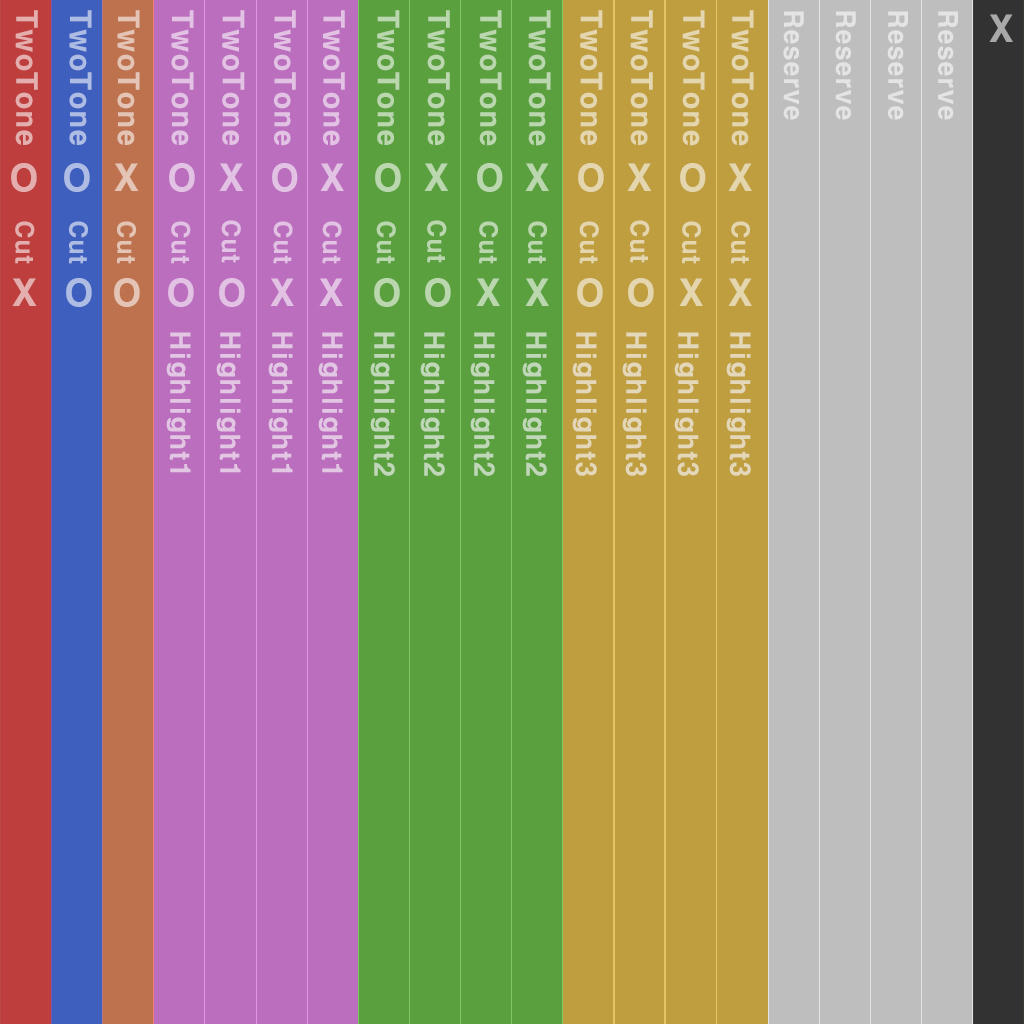
- This is an area for customizing color and length, and is not included in Scalp.
Hair that requires UV2 channel / Hair that does not require UV2 channel
| division | Whether to use UV2 | Support features | PartsId | explanation |
|---|---|---|---|---|
| Basic hair (single color) | ❌ | Single color only | Hair_00 | The simplest form of hair. Does not support two-tone, Highlight Color, or cut features. |
| Customizing Hair (Extension) | ✅ | Two-tone / Highlight Color / Hair cutting function | Please refer to the PartsId table | Activate each function using the area information of the UV2 channel. |
UV2 area by function
| function | explanation | UV2 data area |
|---|---|---|
| TwoTone (two-tone color) | Color gradient between RootColor and TipColor | Refer to the UV2 channel area guide image |
| Cut (hair length adjustment) | Ability for users to adjust hair length with a slider in the customization menu | |
| Highlight Color 1~3 | Highlight color assignment (areas 1-3) | |
| Reserve | For future expansion |
Caution:
Cutin UV2 is a "function to adjust the length in customizing."- The "Hair is automatically cut when wearing a hood" feature
Enable Hair Cut Heightis enabled by a setting in Hair Properties.
Things to check
| item | Things to check |
|---|---|
| Does the Hair card mesh have a UV2 channel? | Delete UV2 channel if two-tone, Highlight Color, or length adjustment is not necessary. |
| Scalp mesh doesn't have UV2 | Scalp mesh does not always require UV2 channel |
| Are the PartsIds assigned to the appropriate function (Hair_00 / Hair_01, etc.)? | Apply the appropriate ID by referring to the PartsID table. * Editable in AppearanceHair.json in Data Editor |
| Are the UV2 areas positioned correctly and without overlapping? | Refer to the UV2 channel area guide image |
Mistake-avoidance tips
| situation | cause | How to solve |
|---|---|---|
| Two-tone color is not applied | UV2 is missing or PartsId not specified | Check for the presence of UV2 |
| Hair length adjustment function not working | Check PartsId | |
| Only some of the Highlight colors are displayed | Check the area within UV2 |
Summary of this section
| Checklist | Whether completed |
|---|---|
| Understanding UV1/UV2 Roles | ✅ |
| Scalp does not include UV2 | ✅ |
| Basic hair (Hair_00) can be registered without UV2 | ✅ |
| Familiarize yourself with the two-tone/Highlight Color/cut function activation conditions | ✅ |
| Check UV2 coordinates and direction | ✅ |