01. Overview
First, select the following item in the ModKit.
- Click Character → AttachedAccessory
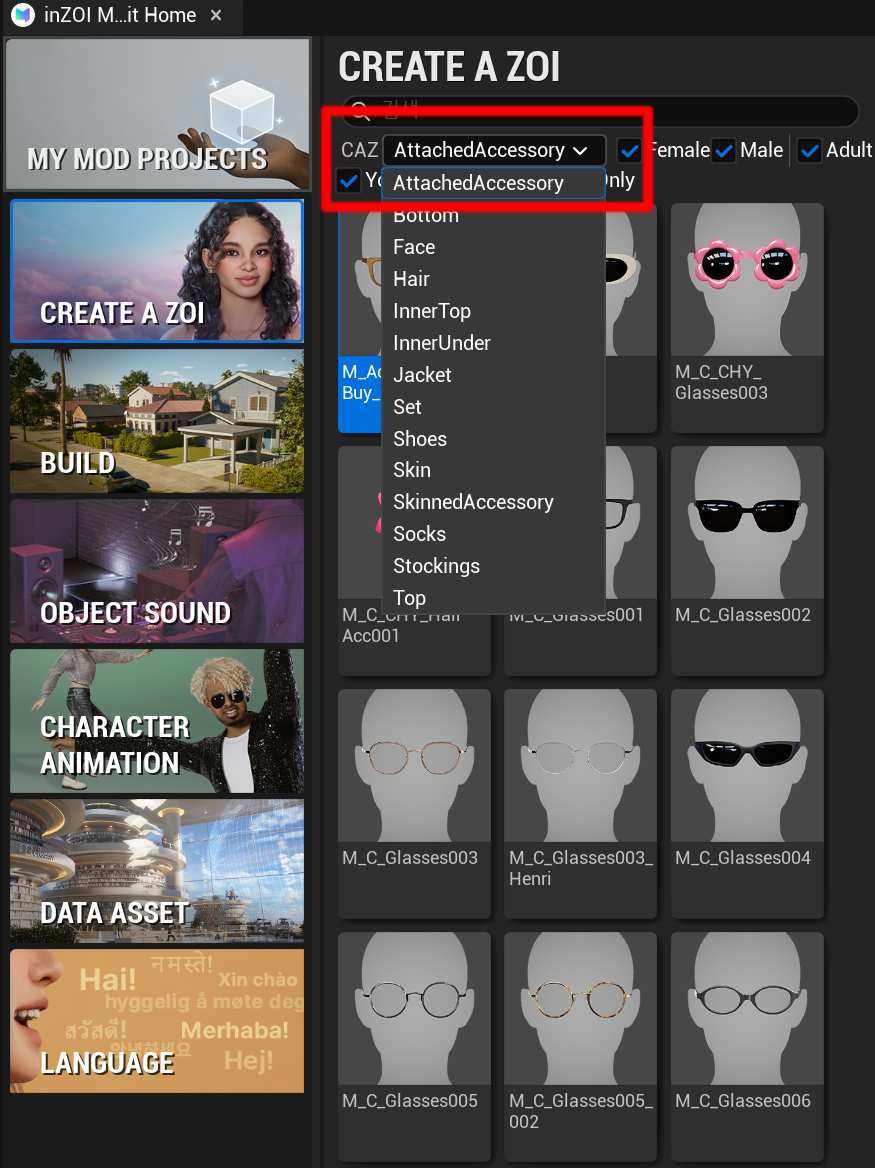
After selecting it, the AttachedAccessory configuration panel will open as shown below.
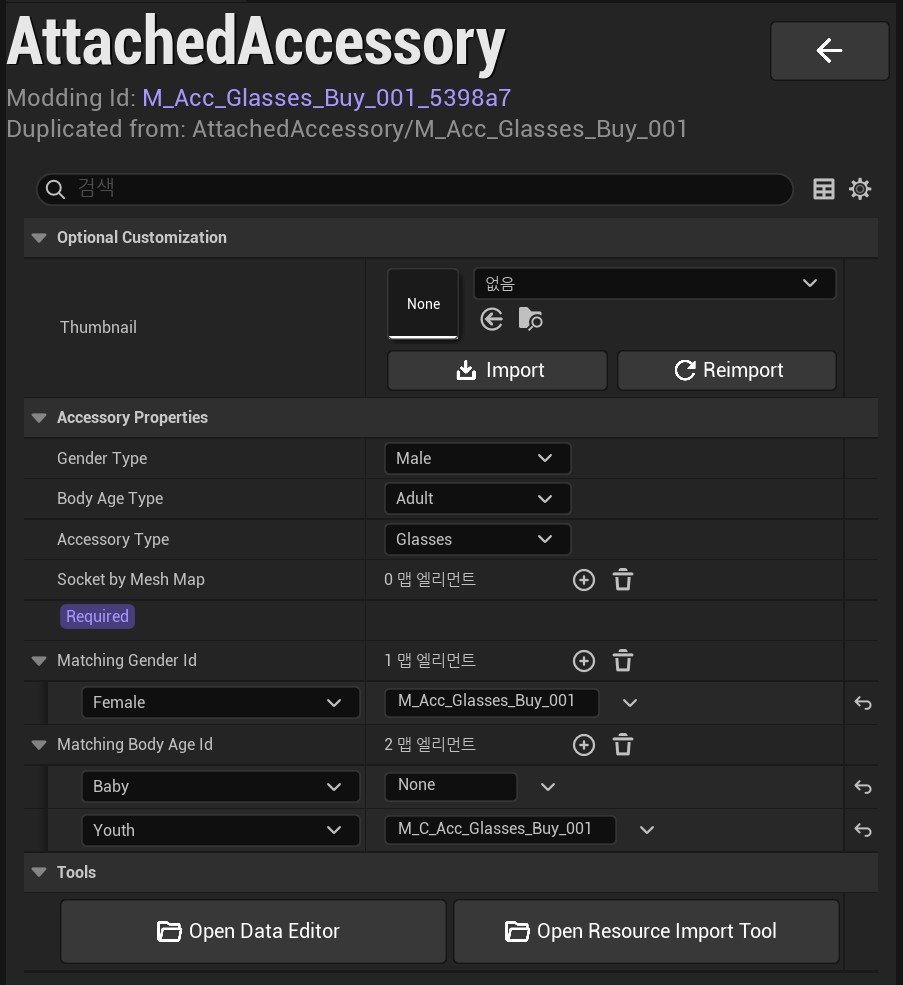
Optional Customization
- Thumbnail
- Registers the thumbnail image for the item
Accessory Properties
-
Gender Type
- Defines which gender can use the item
- Example:
Male,Female
-
Body Age Type
- Defines the age group for the item
- Example:
Adult,Child
-
Accessory Type
- Selects the accessory category
Types:
Glasses: GlassesEarring: EarringsHairAccessory: Hair accessoriesPiercing: PiercingsCraftingMaterial: Processed gem (content-related)
Socket by Mesh Map
- Connects static mesh assets to specific socket positions
- Click the
+button to add entries
Socket Positions
-
Head
- Top of the head (used for hair accessories)
-
Nose Upper
- Nose bridge (used for glasses – Adult Female / Children)
-
Glasses
- Nose bridge (used for glasses – Adult Male)
-
L Ear 4 / R Ear 4
- Lower ear (used for earrings)
-
L Ear 3 / R Ear 3
- Middle ear (used for earrings)
-
L Ear 2 / R Ear 2
- Upper ear (used for earrings)
-
Facial Root
- Center of the face (used for hair accessories)
-
L Forehead Out / R Forehead Out
- Eyebrow (used for eyebrow piercings)
-
Nostril
- Nose (used for nose piercings)
-
Lip Lower
- Lip (used for lip piercings)
Matching Gender Id
- Defines which item ID is displayed when the gender is changed in CAZ
Matching Body Age Id
- Defines which item ID is displayed when the age group is changed in CAZ
Tools
-
Open Data Editor
- Opens the data editor for advanced configuration
-
Open Resource Import Tool
- Opens the resource import tool
tip
Make sure to select the correct socket based on the accessory type. Incorrect socket selection may result in misaligned or improperly attached items in-game.